 Bycross
한국어
Download for PC
One mouse for your PC and tablet
Use the tablet on the USB cable with your PC's mouse and keyboard
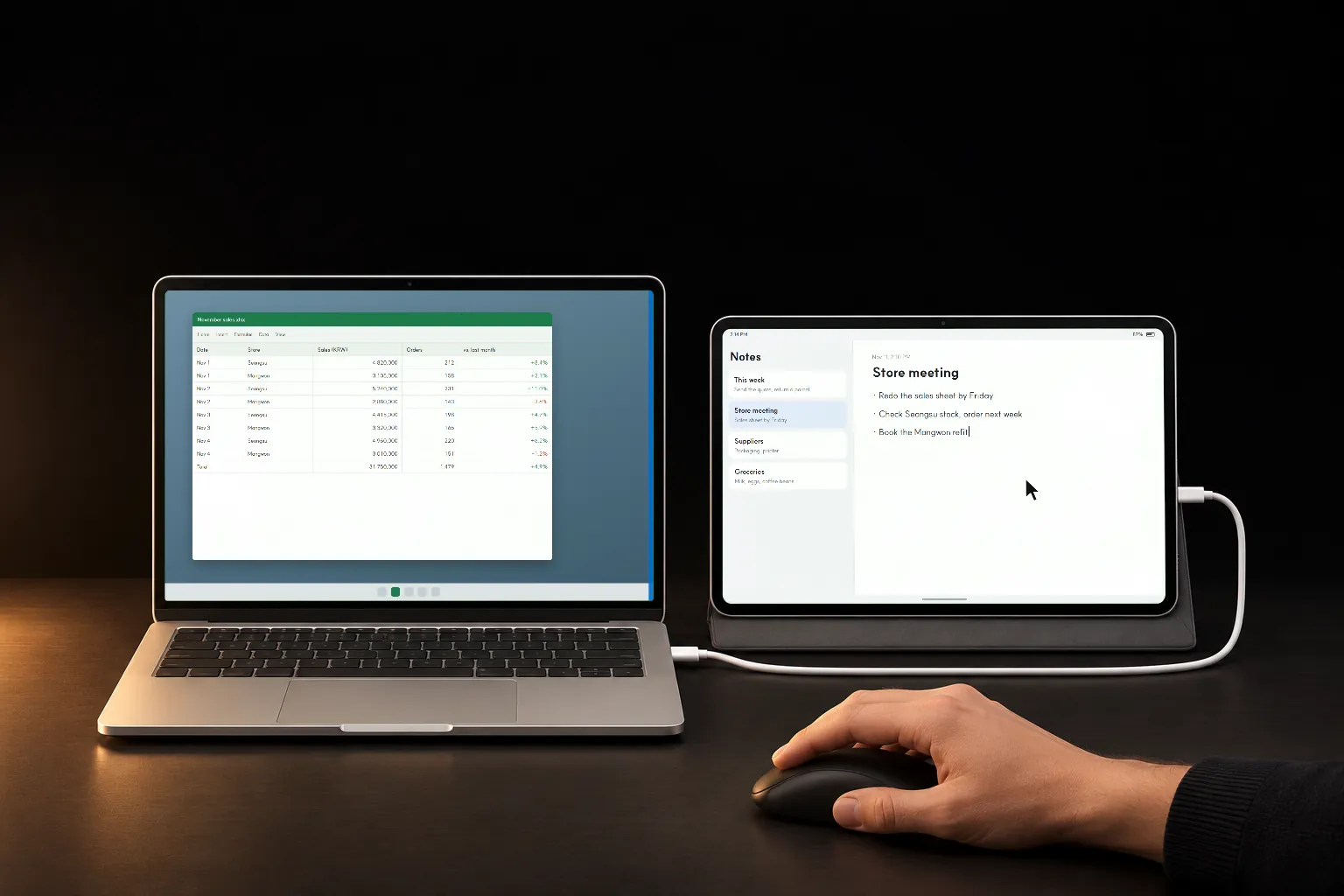
PC: Windows 10 or 11, 64-bit · 44 MB zip · Tablet: Android 8 or later
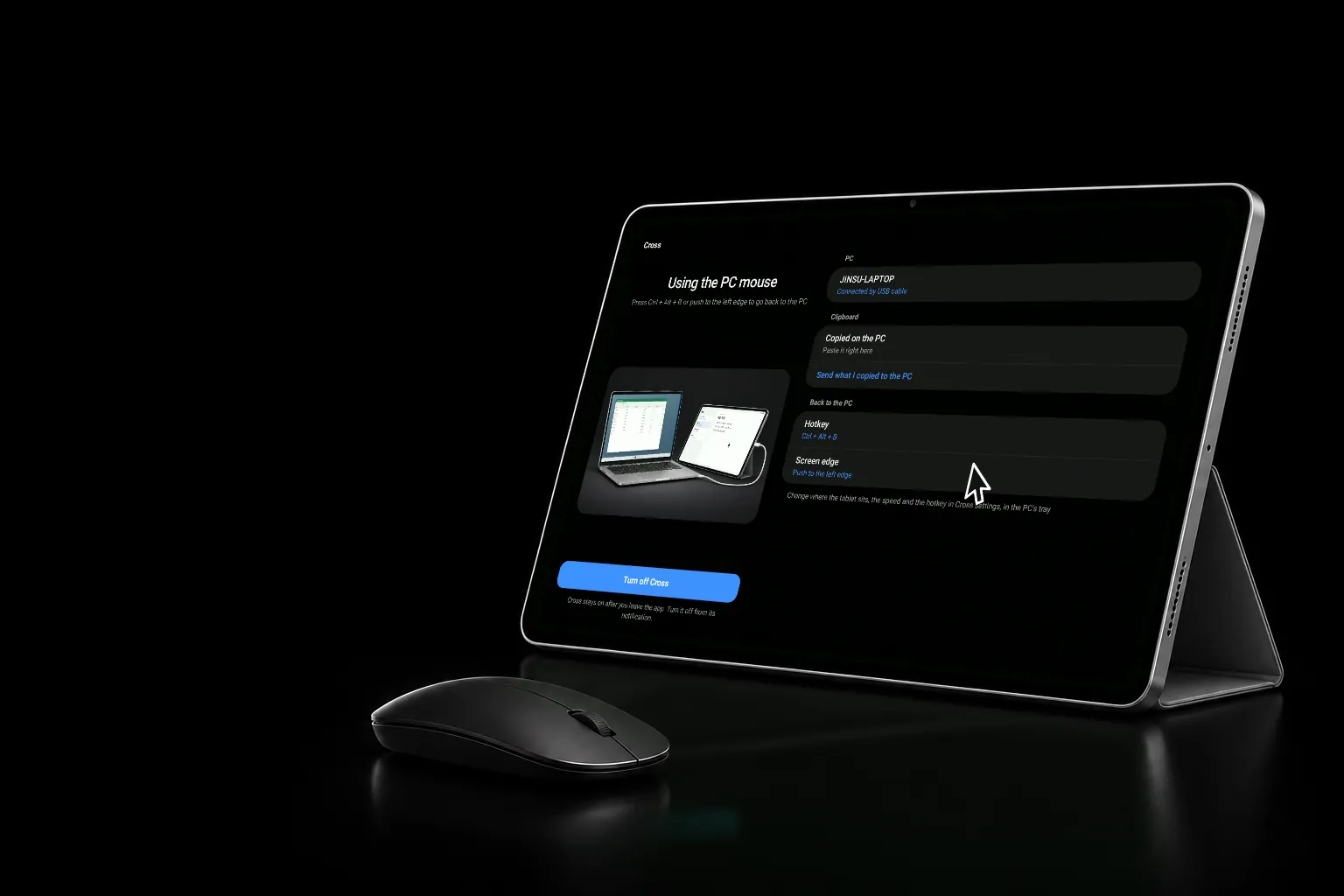
Past the edge,
onto the tablet.
Push back out, or press Ctrl + Alt + B
In the Bycross settings window on the PC, drag the tablet next to the monitor it really sits beside: above, below, left or right.
Choose instant, push and hold, or push twice. Holding or pushing twice keeps the mouse from crossing by accident.
Instant at firstPush out the tablet's side facing the PC, or press the shortcut. Change the shortcut and the mouse speed (0.5 to 2×) in the settings window.
Ctrl + Alt + B at first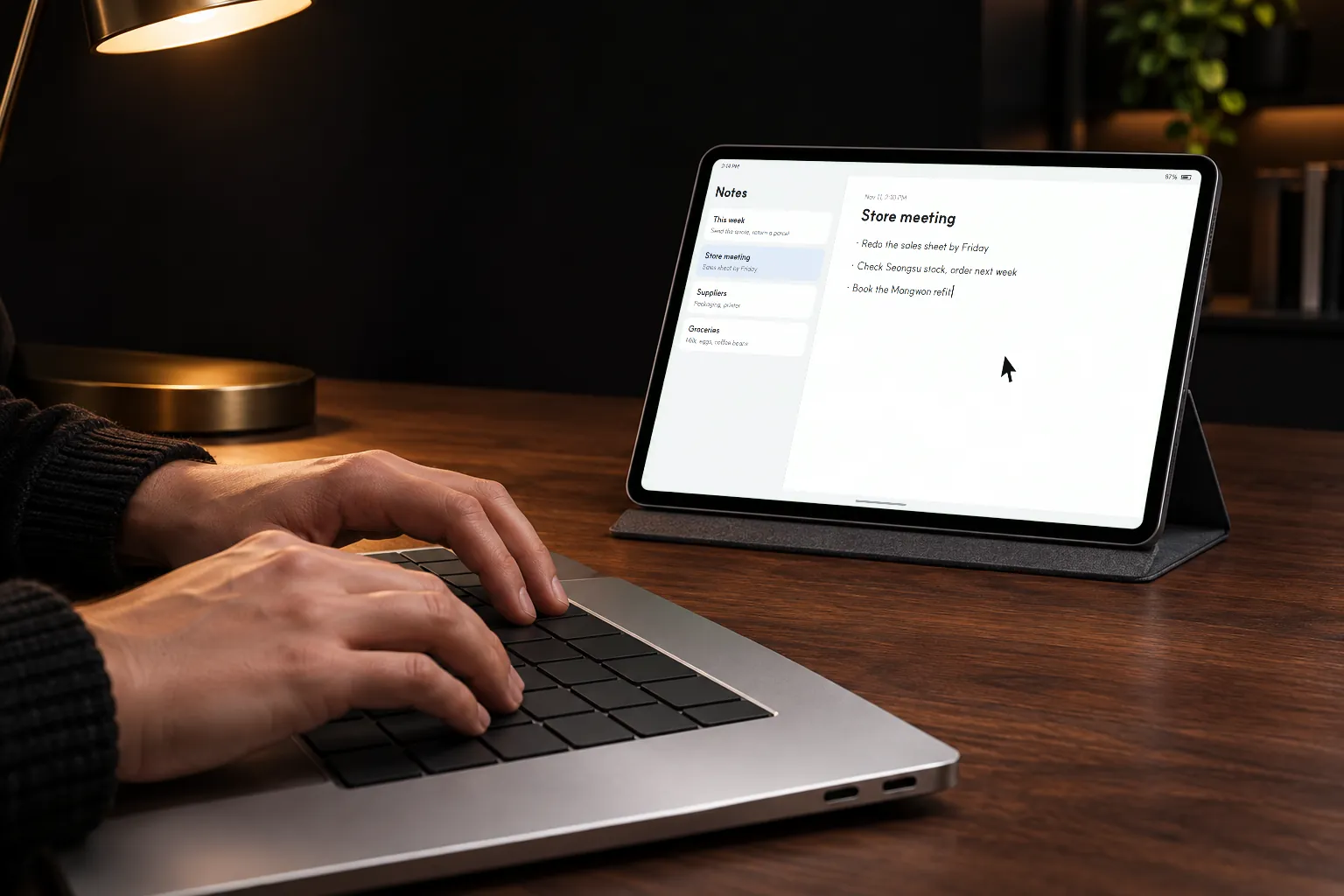
Your keyboard
comes along
Type into the tablet's notes
and chats from the PC
The tablet takes the PC's mouse and keyboard as a USB mouse and keyboard, so they work in any app.
Nothing of the PC's screen is sent. The tablet shows its own apps; only the mouse and keyboard are the PC's.
Bycross keeps going while you use other apps on the tablet. Turn it off from its notification.
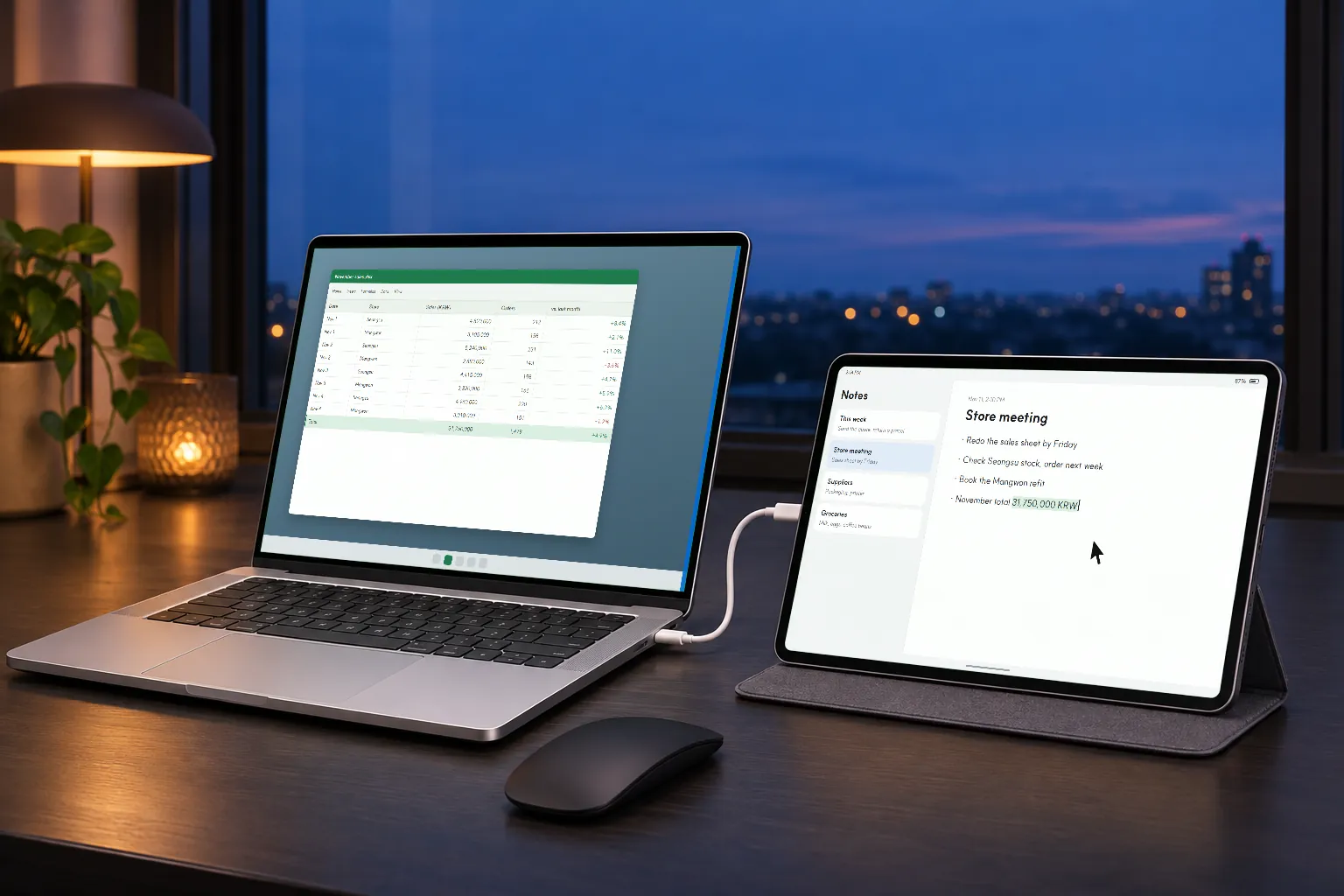
Copy on the PC, paste on the tablet
Text you copy on the PC lands on the tablet's clipboard
Copy text on the PC and it's on the tablet's clipboard too, ready to paste.
On at firstPress "Send what I copied to the PC" in the app, or "Copy to PC" in its notification. Android lets only the app in front read the clipboard, so it takes a button.
Switch off "Share the clipboard" in the Bycross settings window on the PC and nothing goes either way.
Get started
You only do this once. When a reply to your question says "see step 3", it means these numbers.
PC
- 1Unzip and run cross.exeIt has no window: it lives as the Bycross icon in the notification area at the bottom right.
- 2If "Windows protected your PC" appears, choose More info → Run anywayThe program isn't code-signed yet, so this shows once.
- 3Double-click the Bycross icon and set the tablet's positionDrag the tablet next to the monitor it really sits beside.
Tablet
- 1Install Bycross from Google Play
- 2Turn on USB debuggingSettings → About tablet → Software information: tap Build number seven times to get Developer options. Then Settings → Developer options → USB debugging.
Connect with USB
- 1Plug the tablet into the PC with a USB cable
- 2When the PC shows "A device is connected by USB", choose Connect
- 3If it shows "A USB driver needs installing once", choose Install → YesOnce per tablet.
- 4On the tablet, tick "Always" when asked to open Bycross, then OK
- 5Start Bycross in the appThen push the PC's mouse past the edge on the tablet's side.
3 days free
Then the mouse stays free
Try the mouse, the keyboard and the clipboard.
FreeThe mouse keeps going over to the tablet. The keyboard stays with the PC and the clipboard isn't shared.
FreeKeep the keyboard and the clipboard. Not a subscription; other tablets on the same Google account are included.
One-time purchaseHelp
The app says "Turn on USB debugging"
The PC program uses USB debugging to switch the tablet over to the cable. Follow tablet step 2.
The app says "Press Connect on the PC"
Choose Connect on the card at the bottom right of the PC's screen. If there's no card, start Bycross on the PC and plug the cable in again. A card closed without an answer asks again next time.
Nothing happens when I plug the cable in
Charge-only cables don't connect. Try a USB-C cable that carries data, and check that the PC program is in the notification area.
I use Byscreen too
One cable serves one app at a time. Open the app you want on the tablet and press "Switch to Bycross" or "Switch to Byscreen". Next time you plug in, the last app you used connects.
A work PC asks for an administrator password
Installing the USB driver the first time needs administrator rights. Ask your IT team; it won't ask again after that.
I want to report a problem
Type %LOCALAPPDATA%\Bycross into File Explorer's address bar and email us the cross.log file there. It records what happened.