 Byview
한국어
Google Play
Your shot, on a spare phone or tablet
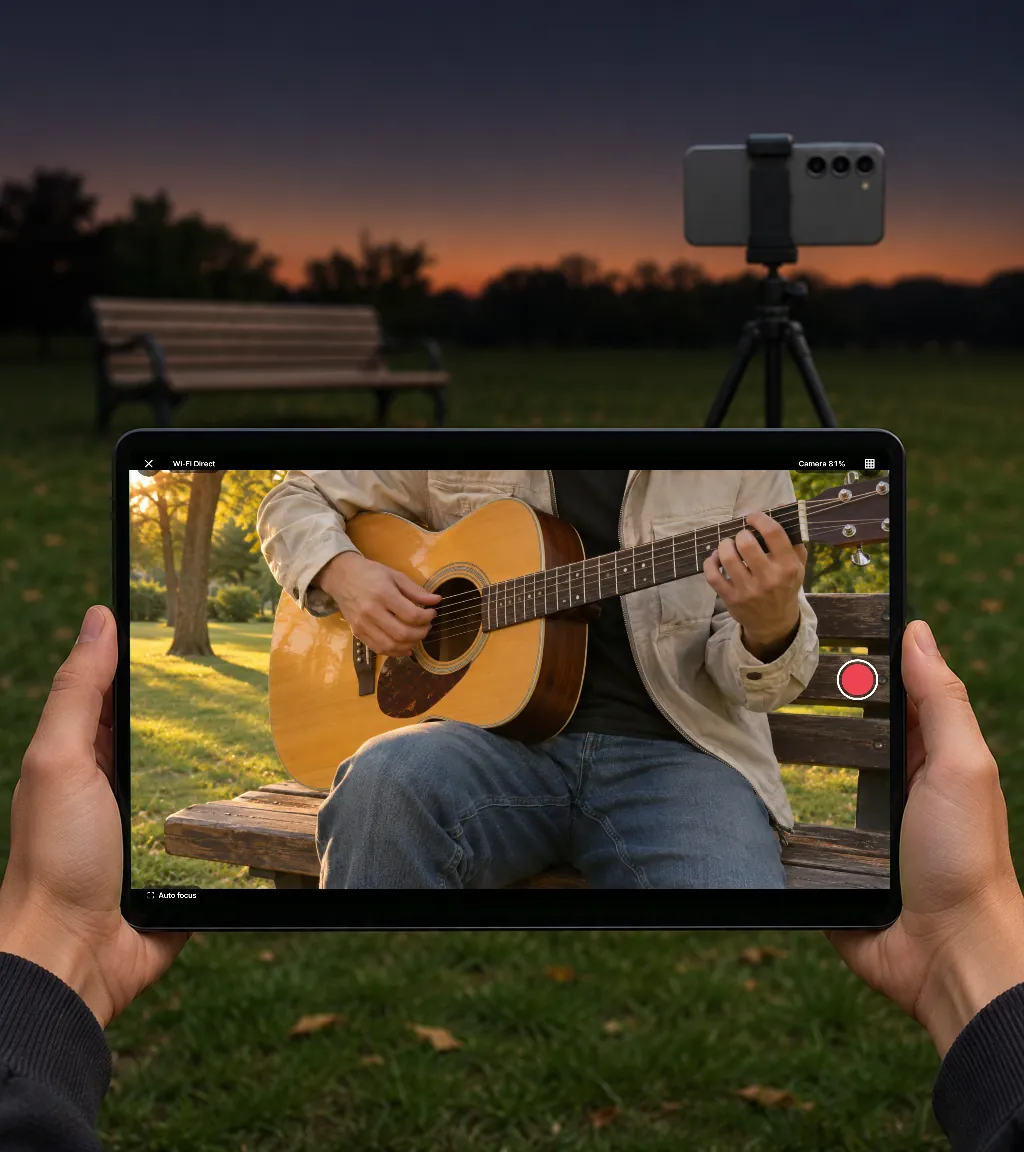
Filming yourself and can't see the shot? Put the camera phone's picture on a spare phone or tablet and watch while you record
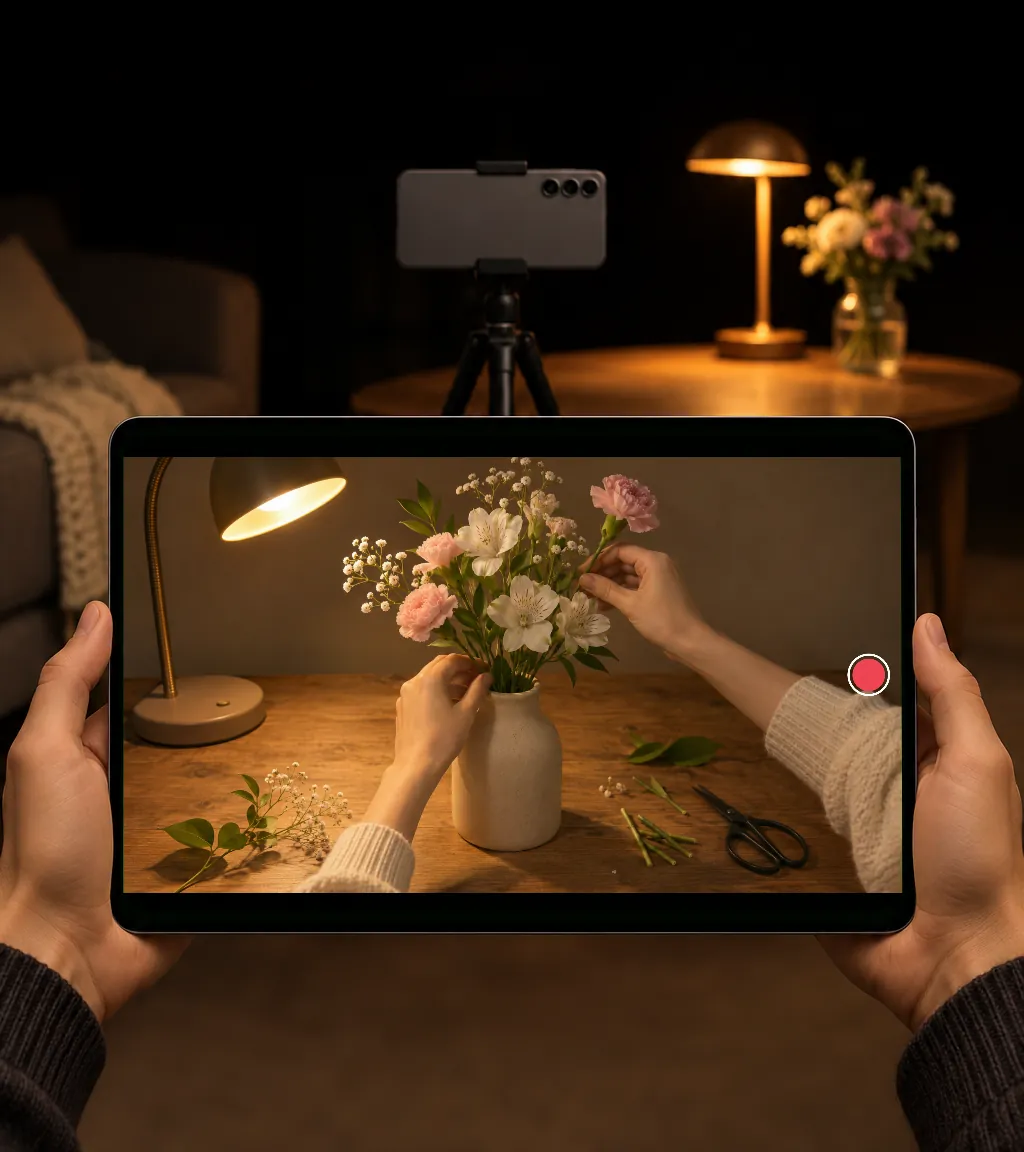
Android 10 or later · install on both the camera phone and the viewing device
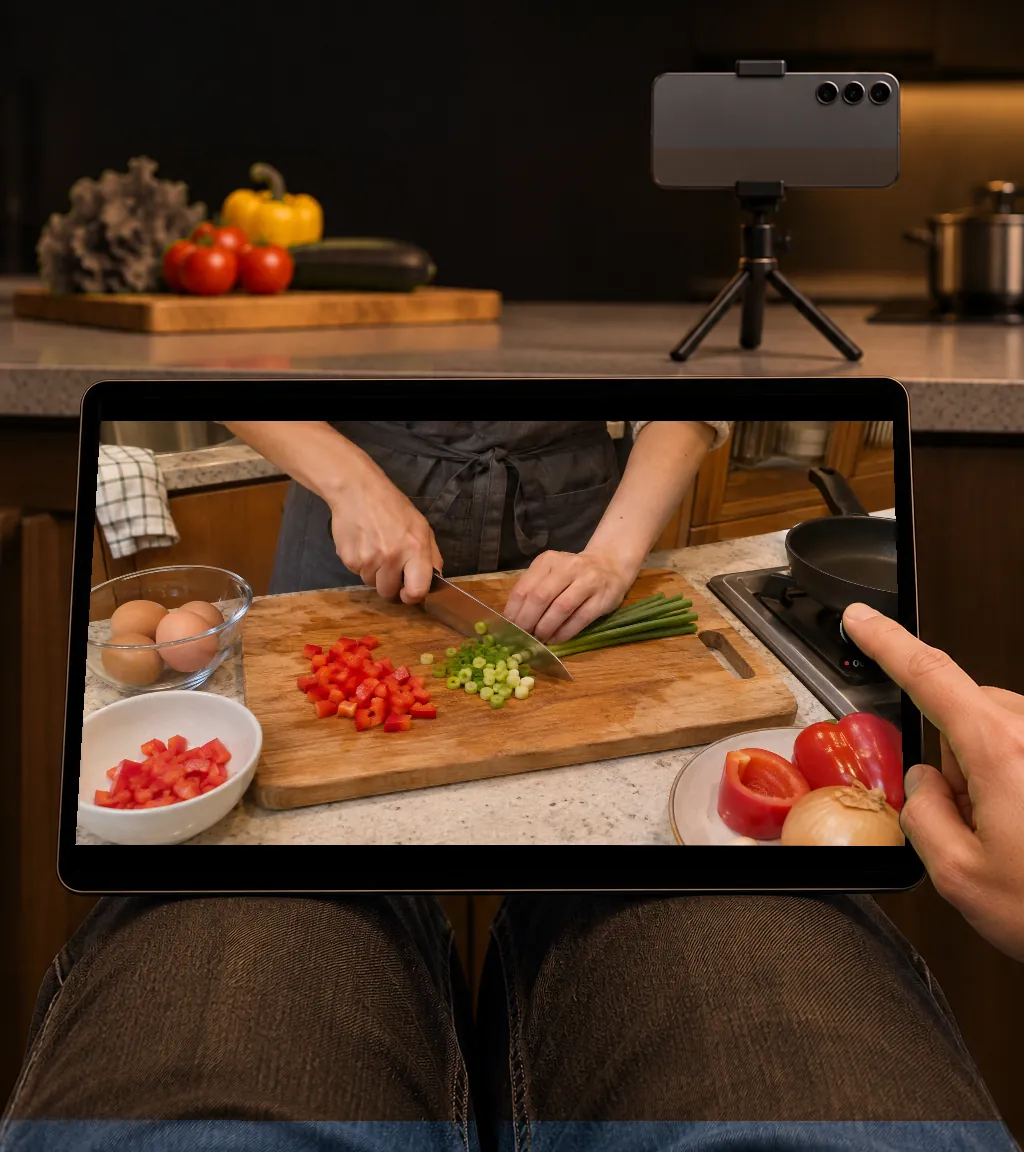
Record from your seat
No walking to the tripod
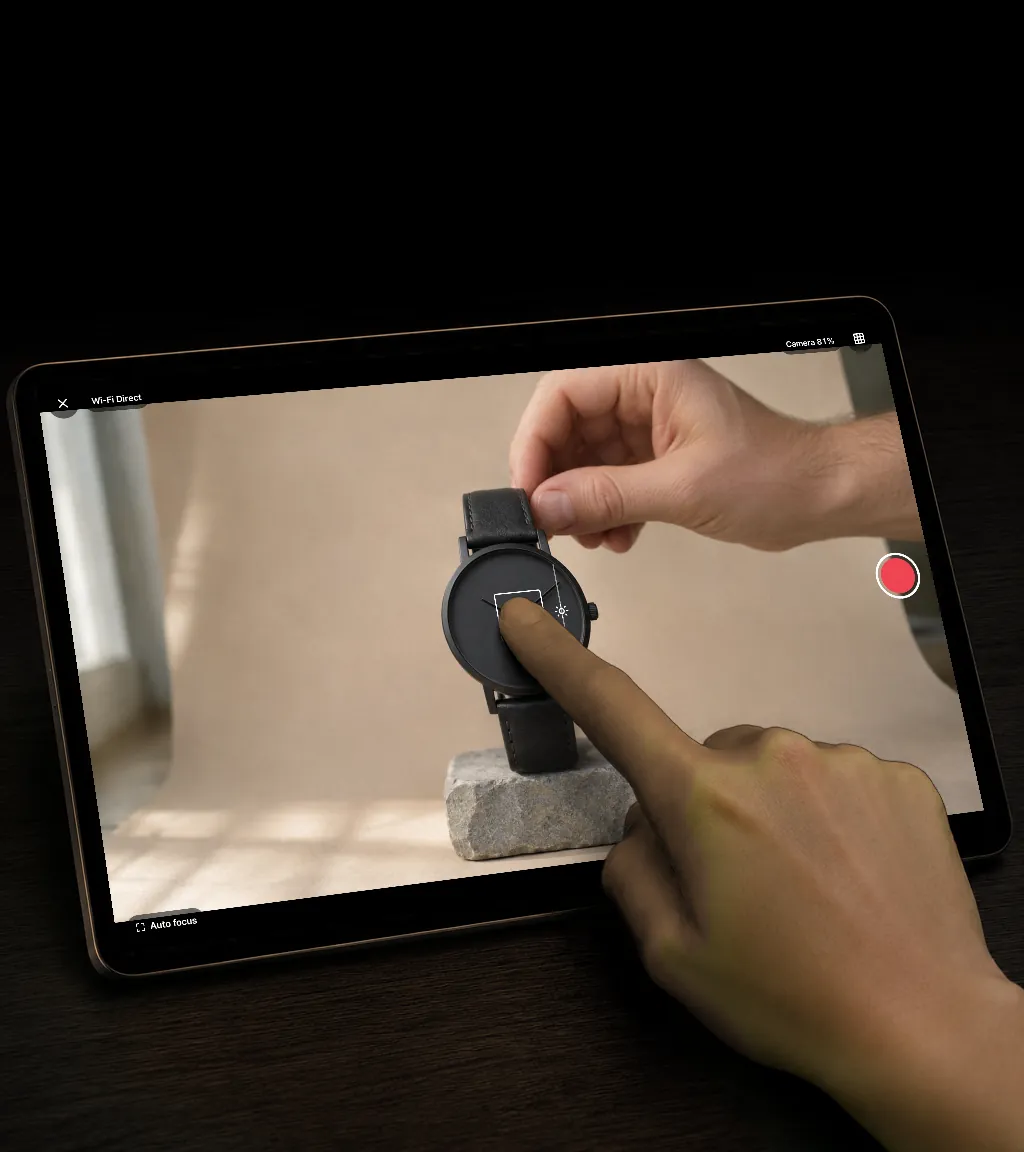
Tap. In focus.
Focus and brightness set where you tap
Record YouTube videos or lessons on your own and check you're in the frame.
Put the phone on a tripod, stay in your seat and record while you watch the picture.
Hands full? Keep the overhead shot right beside you.
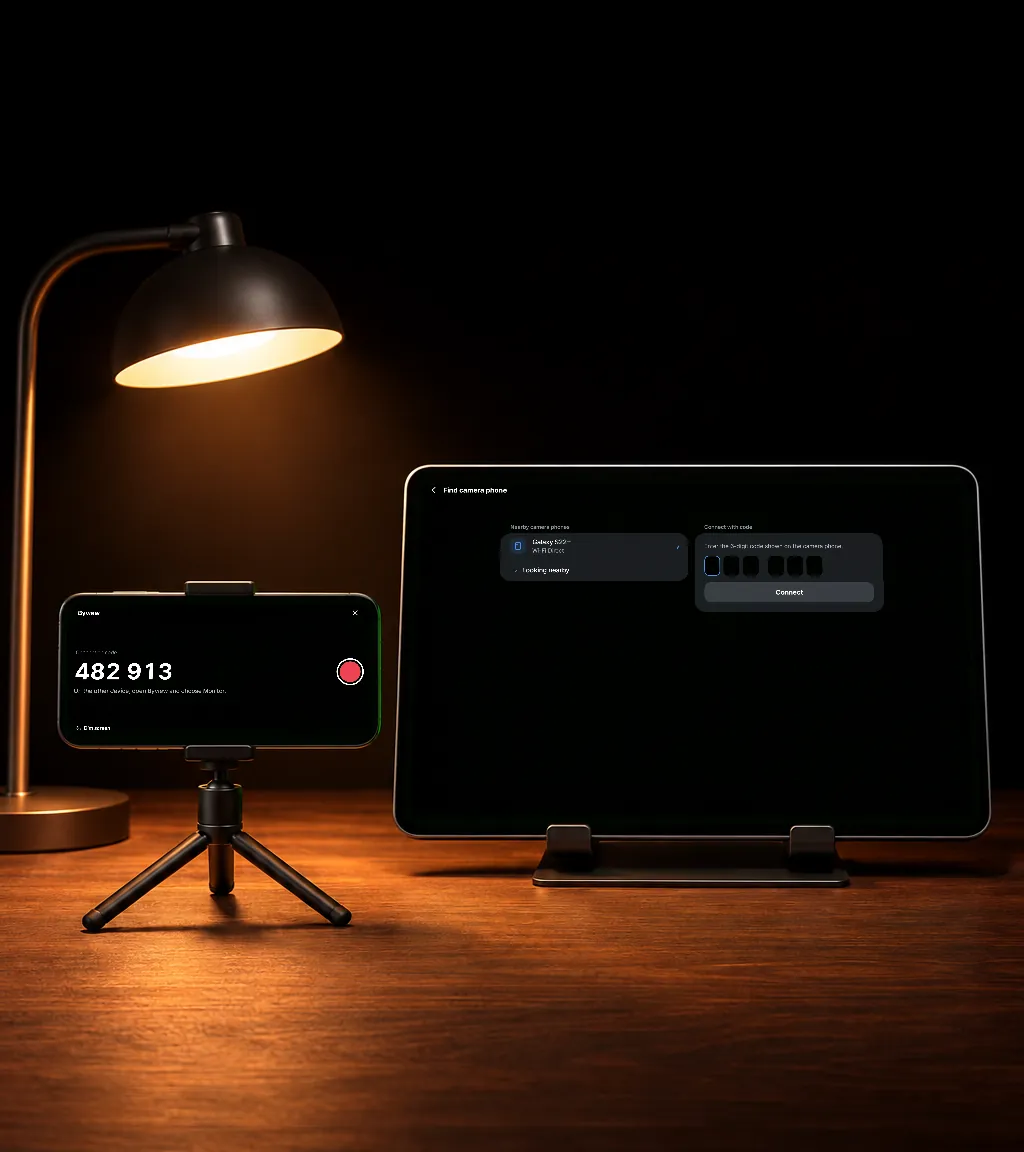
One code, once
Next time, just tap it in the list
No router needed
The two connect directly
The camera phone connects to the viewing device directly over Wi-Fi Direct, in a park or on a sports field too.
When both devices are on one Wi-Fi network, they can connect that way as well.
Your picture doesn't go through a server, and Byview doesn't upload or store it anywhere.
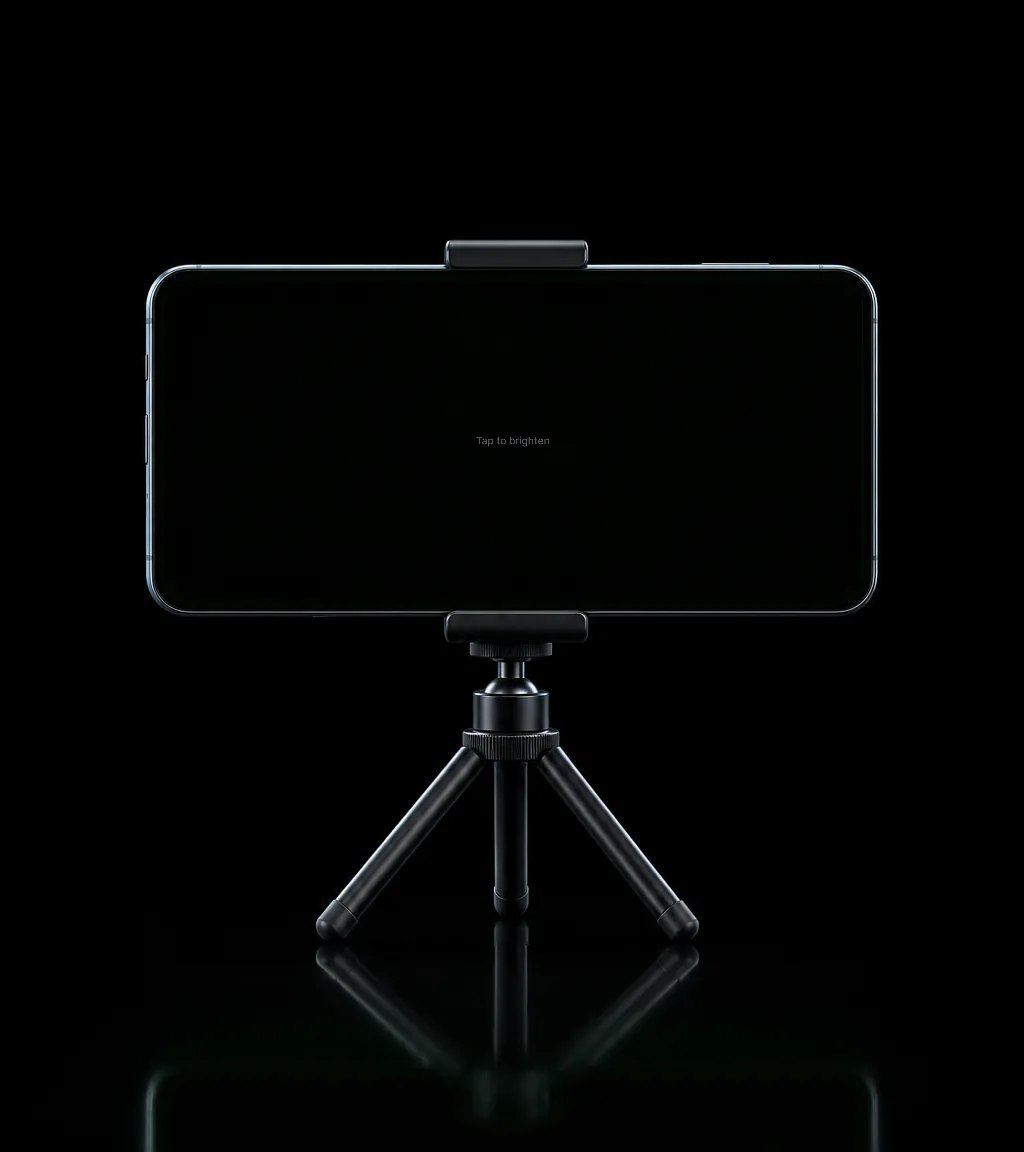
Camera phone, screen dark
Saves battery. Tap to brighten
The recording time stays on the monitor while you record.
Check how much battery the camera phone has left on the monitor.
Get started
You need one phone to film with and one phone or tablet to watch on. If a reply to your question says "see Monitor 2", it means this number.
Install on both
- 1Install Byview on the camera phone and the viewing deviceThe viewing device can be a phone or a tablet.
Camera phone
- 1Open Byview and choose Camera phoneA 6-digit code appears.
- 2Set it on a tripod or a standIt films with the back camera.
Monitor
- 1Open Byview and choose Monitor
- 2Tap the camera phone in the nearby list, or enter the 6-digit codeYou enter the code only the first time. After that, tap it in the list.
- 3Tap the picture to focus, press the red button to recordVideo is saved on the camera phone, in the Movies/Byview folder.
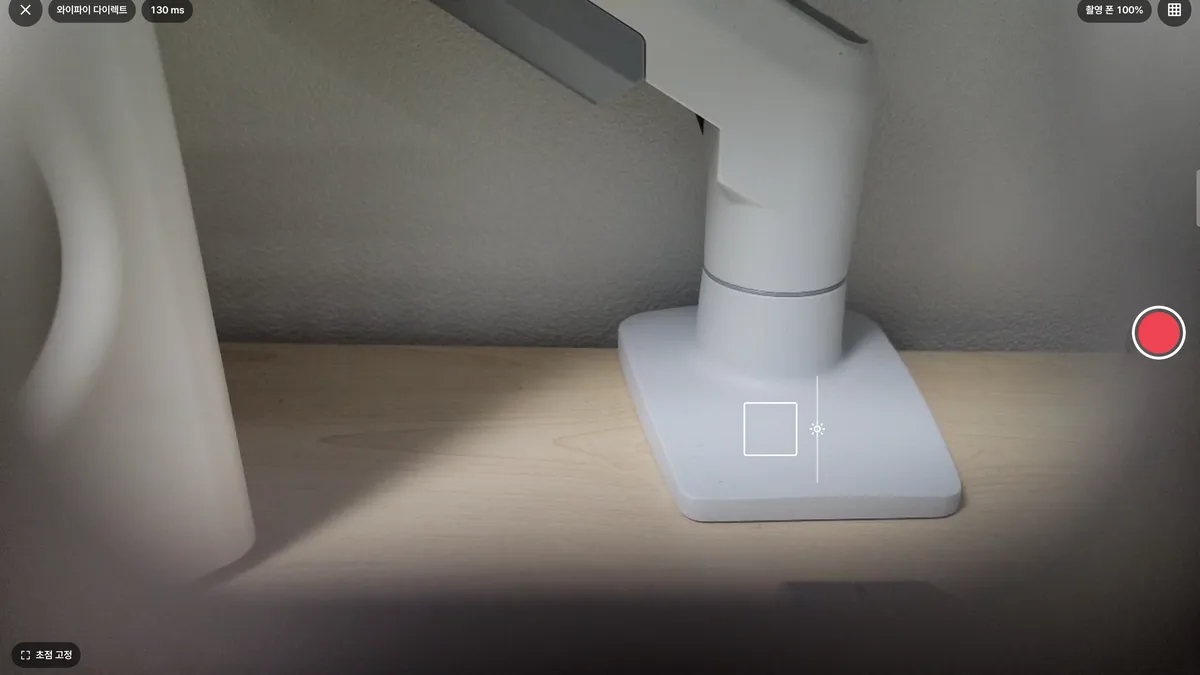
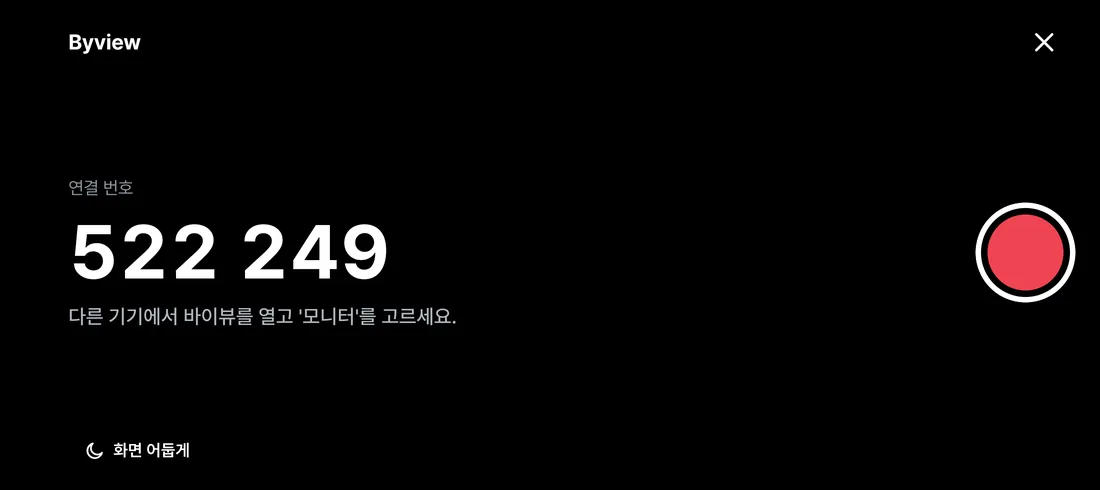
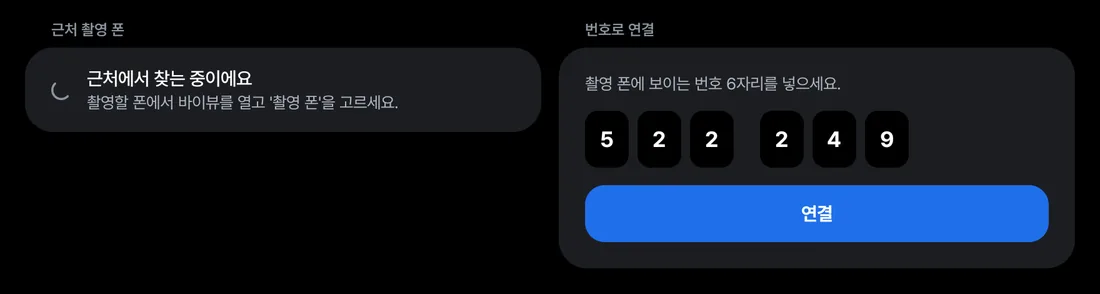
Real screens from our test phone and tablet, set to Korean.
Help
The camera phone isn't in the list
Byview has to be open on the camera phone, on the Camera phone screen, for it to appear in the list. If it isn't there, entering the 6-digit code from the camera phone also connects right away.
It says the code doesn't match
Enter the code shown on the camera phone right now. If you changed the code in the camera phone's settings, devices you connected before need the new code once.
Where are my recordings?
On the camera phone, in the Movies/Byview folder. They show up in your gallery app too. Nothing is saved on the viewing device.
The camera phone's screen went dark
20 seconds after a monitor connects, the camera phone's screen dims to save battery; filming goes on. Tap the screen to brighten it, or turn this off in Settings.
Can I try it with one phone first?
Settings → One-phone test shows what this phone is filming on this same phone, like a monitor.