 Byphoto
한국어
Download for PC
Phone photos, home to your PC
New photos and videos go to your PC on your home Wi-Fi, by themselves
PC: Windows 10 or 11, 64-bit · 55MB zip · Phone: Android 11 or later
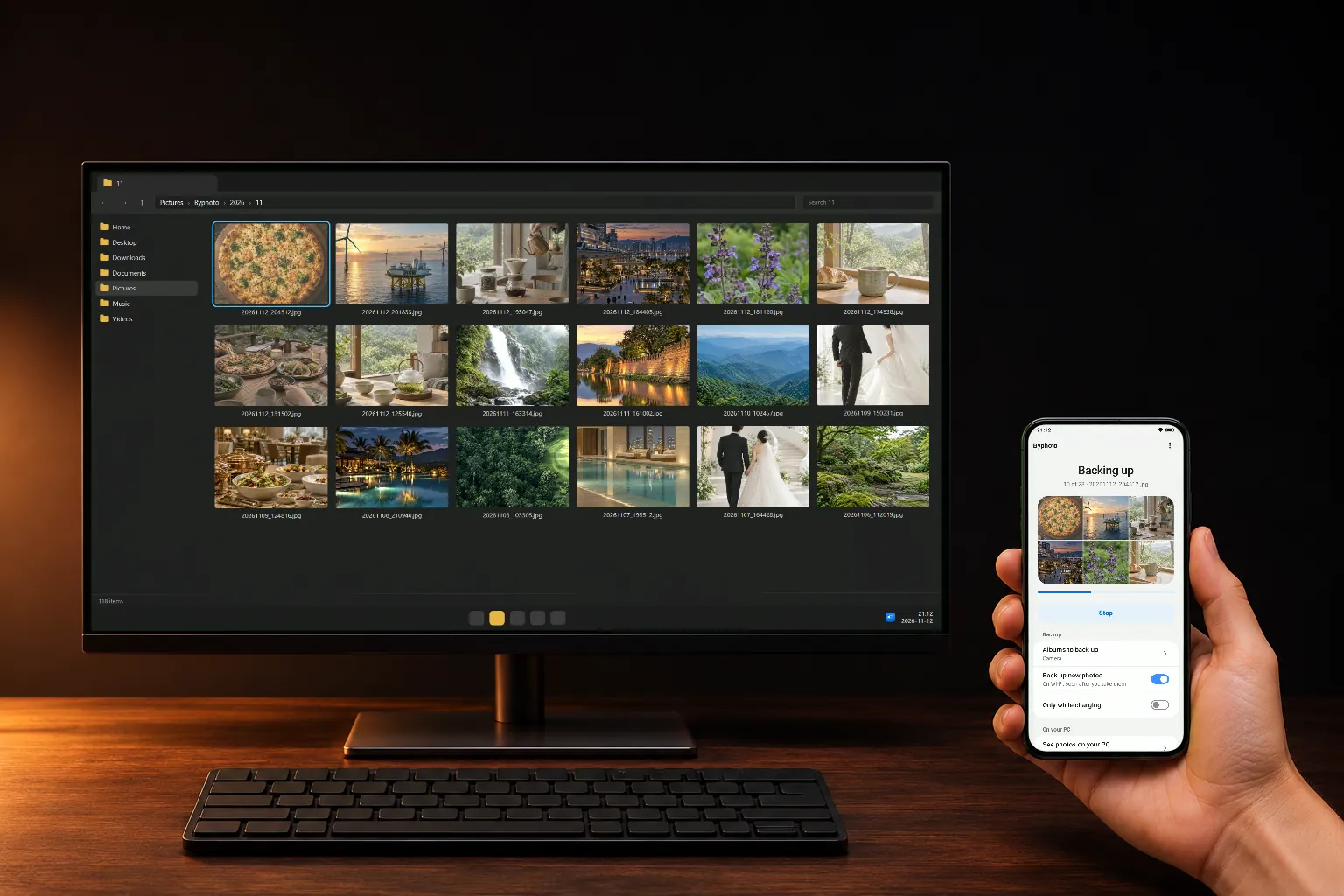
Originals,
untouched.
Full-size originals in year
and month folders on your PC
Into the PC's Pictures\Byphoto folder, sorted by year and month. Change it from the PC program's icon menu; the new folder is used after the program restarts.
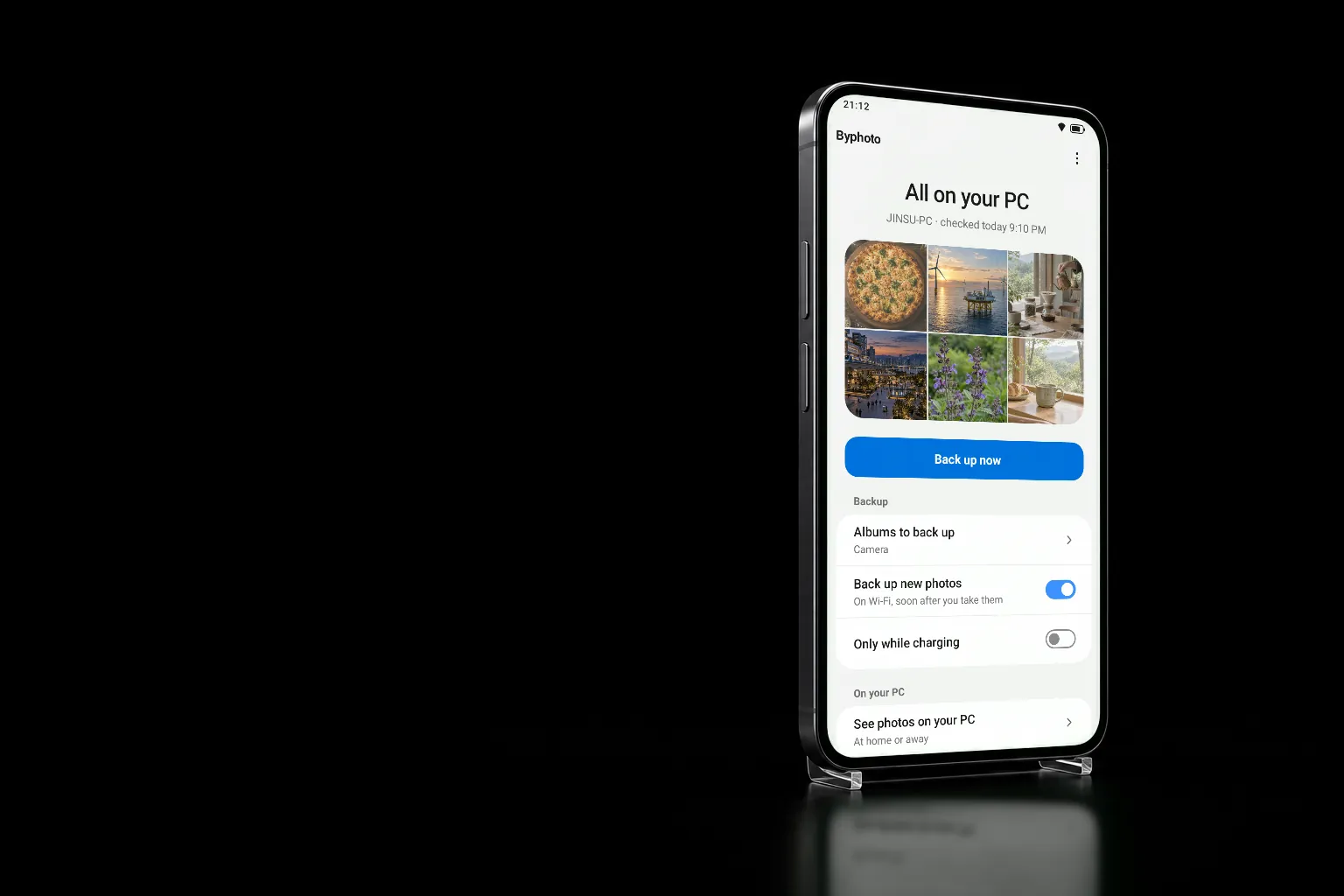
At first: Pictures\ByphotoNew photos go to the PC shortly after you take them, on your home Wi-Fi. Back up now sends them right away, with the progress in a notification.
An interrupted transfer carries on from where it stopped. Photos already on the PC are never sent twice.
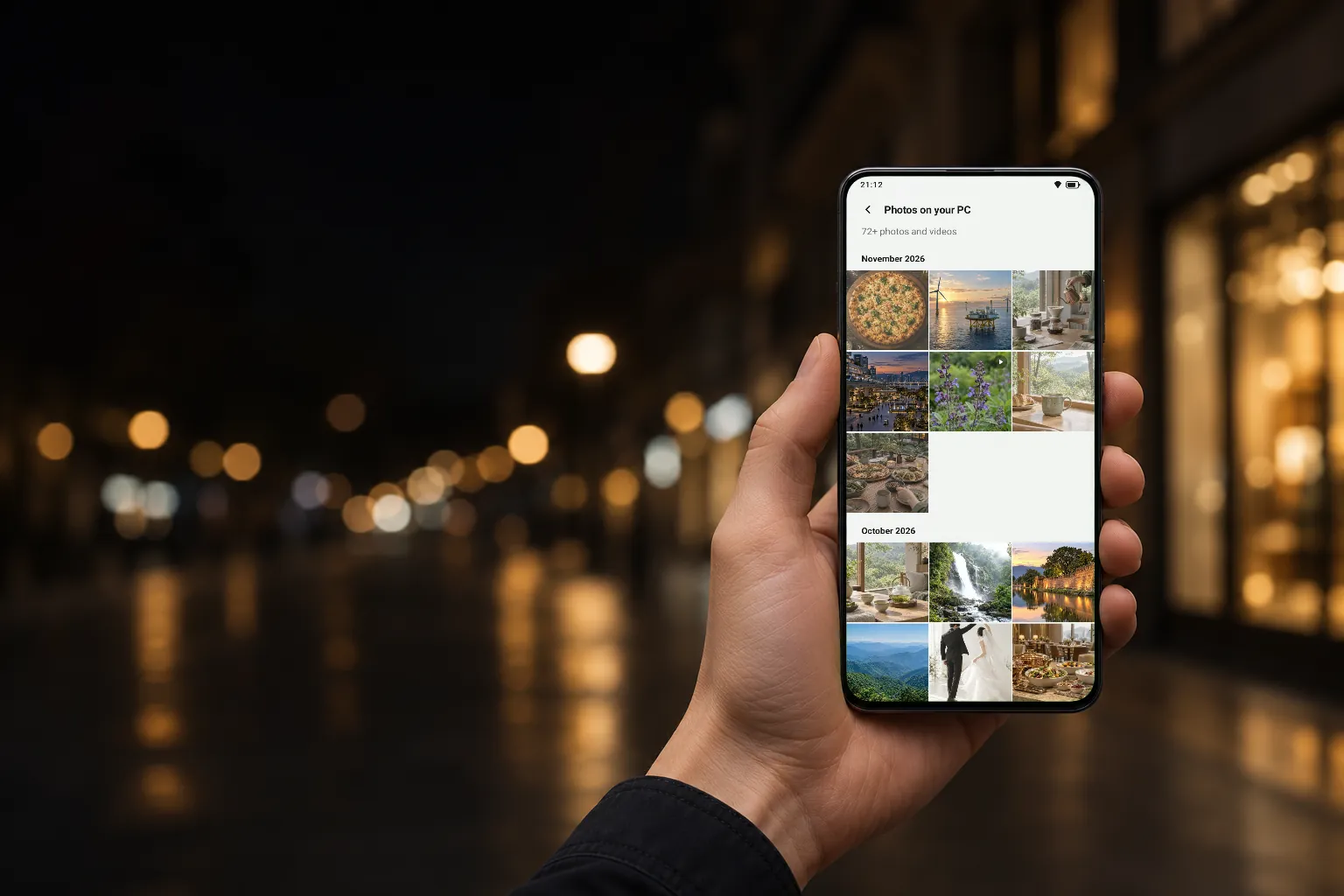
Your PC’s photos,
away from home
The phone connects straight to your PC
No one else’s server in between
When your router supports UPnP, or your home internet has IPv6. The PC program's icon menu shows whether outside access works.
Behind two routers, or on some apartment and office networks, the PC may not be reachable from outside. Backing up on your home Wi-Fi still works.
Seeing your PC's photos works on any network. Automatic backup uses mobile data only when Back up on mobile data too is on in the app.
Off at first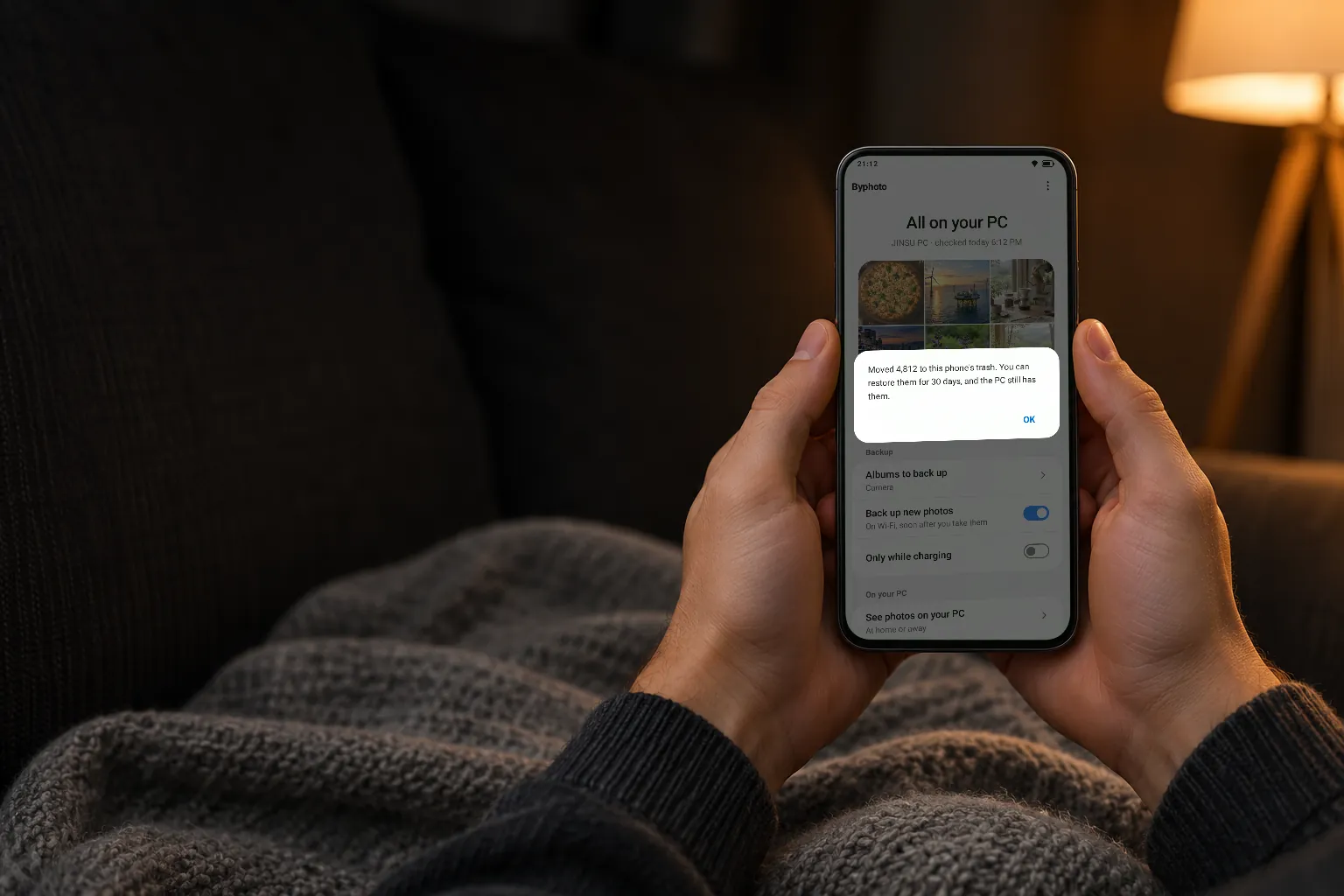
Free up space,
keep them on the PC
Only photos already on the PC go to the trash
Restore them for 30 days
Each photo is checked against the same file on the PC first. Photos not sent yet are left alone.
Android shows a confirmation before anything moves. With many photos it asks in batches of 1,000.
The gallery's trash keeps them for 30 days. The originals stay on the PC.
Get started
You only do this once. When a reply to your email says "see PC step 3", this is the number.
PC
- 1Unzip it where it will stay and run byphoto.exeNothing to install. It starts again from there when Windows starts, and sits as an icon in the notification area at the bottom right, with no window.
- 2If "Windows protected your PC" appears: More info → Run anywayThe program isn't code-signed yet, so this shows once.
- 3If the firewall asks, allow private networksThis lets the phone find the PC on your home Wi-Fi and send photos to it.
- 4Note the 6-digit number at the bottom rightIf you closed the card, click the Byphoto icon in the notification area to show it again.
Phone
- 1Install Byphoto from Google Play
- 2Allow all photos and videos, photo location and notificationsWith photo location allowed, originals keep where they were taken.
- 3On the PC's Wi-Fi: Connect a PC → the PC it finds → the 6-digit numberIf the PC doesn't show up, use Connect by address with the PC's address.
- 4Choose the albums and tap Back up nowThe camera album is chosen at first. A first backup of many photos takes a while; you can use other apps meanwhile.
Free at home
Away from home: pay once
Automatic backup, seeing your PC's photos and freeing up space, for good.
FreeTry seeing and backing up away from home too.
FreeKeep using it away from home. Not a subscription; your other phones on the same Google account unlock with Restore purchase.
Pay onceHelp
The phone can't find the PC
Check that the phone and the PC are on the same Wi-Fi (the same router) and that the Byphoto icon is in the PC's notification area. If the firewall question in PC step 3 wasn't allowed, the phone can't find the PC. If it still doesn't show up, type ipconfig in the PC's Command Prompt and enter its IPv4 Address in Connect by address.
What if the PC is off?
The photos stay on the phone and go at the next backup after the PC is on. A sleeping PC can't receive them, so keep it awake while it backs up.
Outside access says it doesn't work
Turning on UPnP in your router's settings often fixes it. A home with a second router behind the provider's modem usually can't be reached from outside. Backing up and viewing on your home Wi-Fi still work.
Does it do videos?
Yes. Videos in the chosen albums go to the PC as originals, and they're marked when you browse your PC's photos on the phone. Tap one to download the original and open it on the phone.
I want to switch to another PC
On the app's home, tap ⋮ at the top right → Connect another PC, and enter the new PC's number. Photos the old PC received stay on it.
I want to report a problem
Type %LOCALAPPDATA%\Byphoto in File Explorer's address bar and email us the byphoto.log file there. It records what happened; it never contains your photos.