 Bykeyboard
한국어
Get the app
Your phone as a PC keyboard and mouse
Watching or presenting from the couch? Use your phone as the PC’s trackpad and keyboard
Phone: Android 9 or later · Bluetooth: nothing to install on the PC · PC program: Windows 11, 64-bit, 46 MB zip
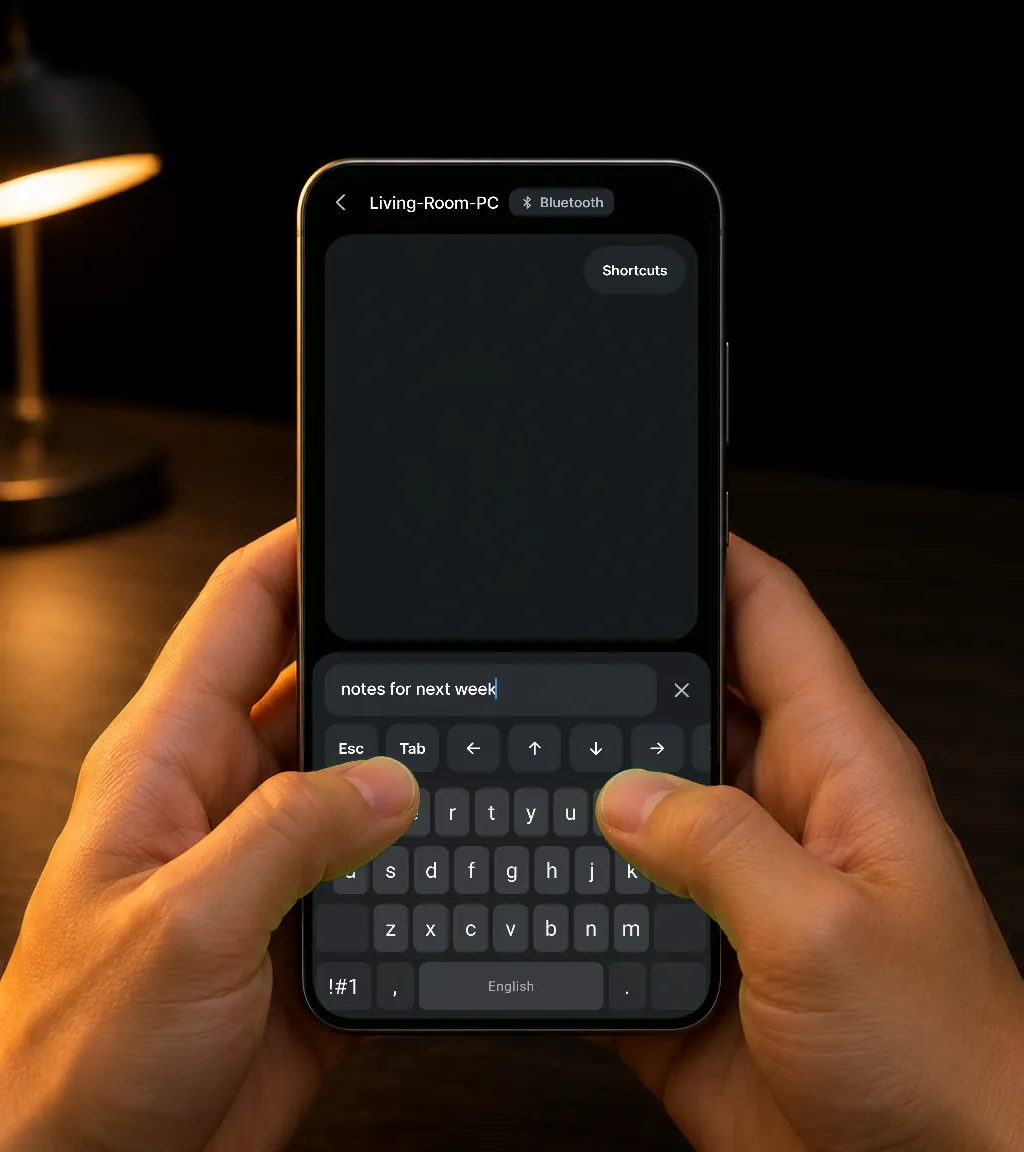
Type on your phone
Words go to the PC as you type
Typed like a Bluetooth keyboard. For Korean, the PC needs a Korean keyboard; if the PC and the phone disagree on Korean/English, tap “Fix 한/영” on the key bar.
Text goes in exactly as typed, whatever the PC’s input language. Emoji and every language too.
Esc, Tab, arrows, Ctrl, Alt and Win combos, F1–F12, volume and playback keys sit above the phone’s keyboard.
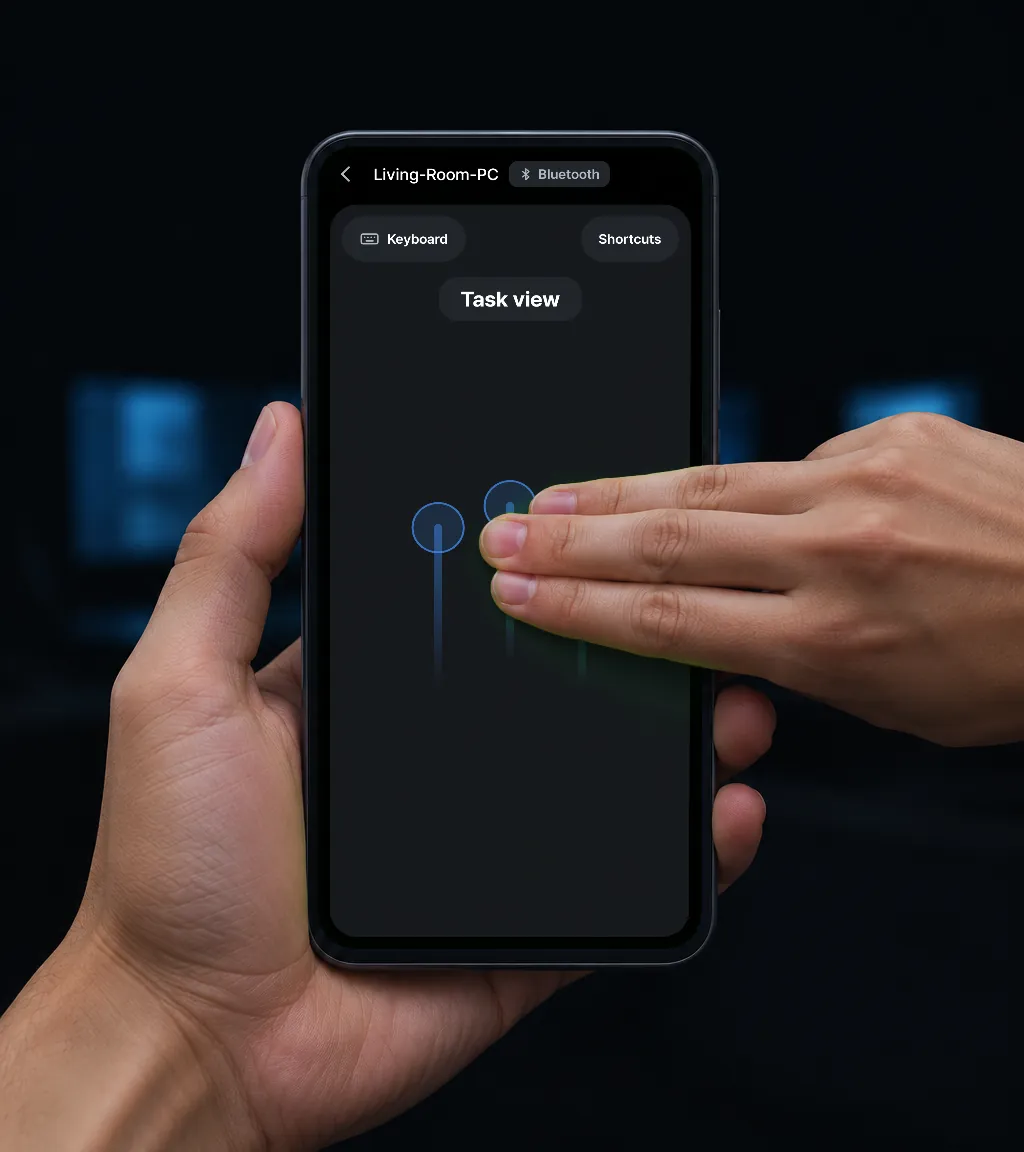
Three fingers
Every open window at once
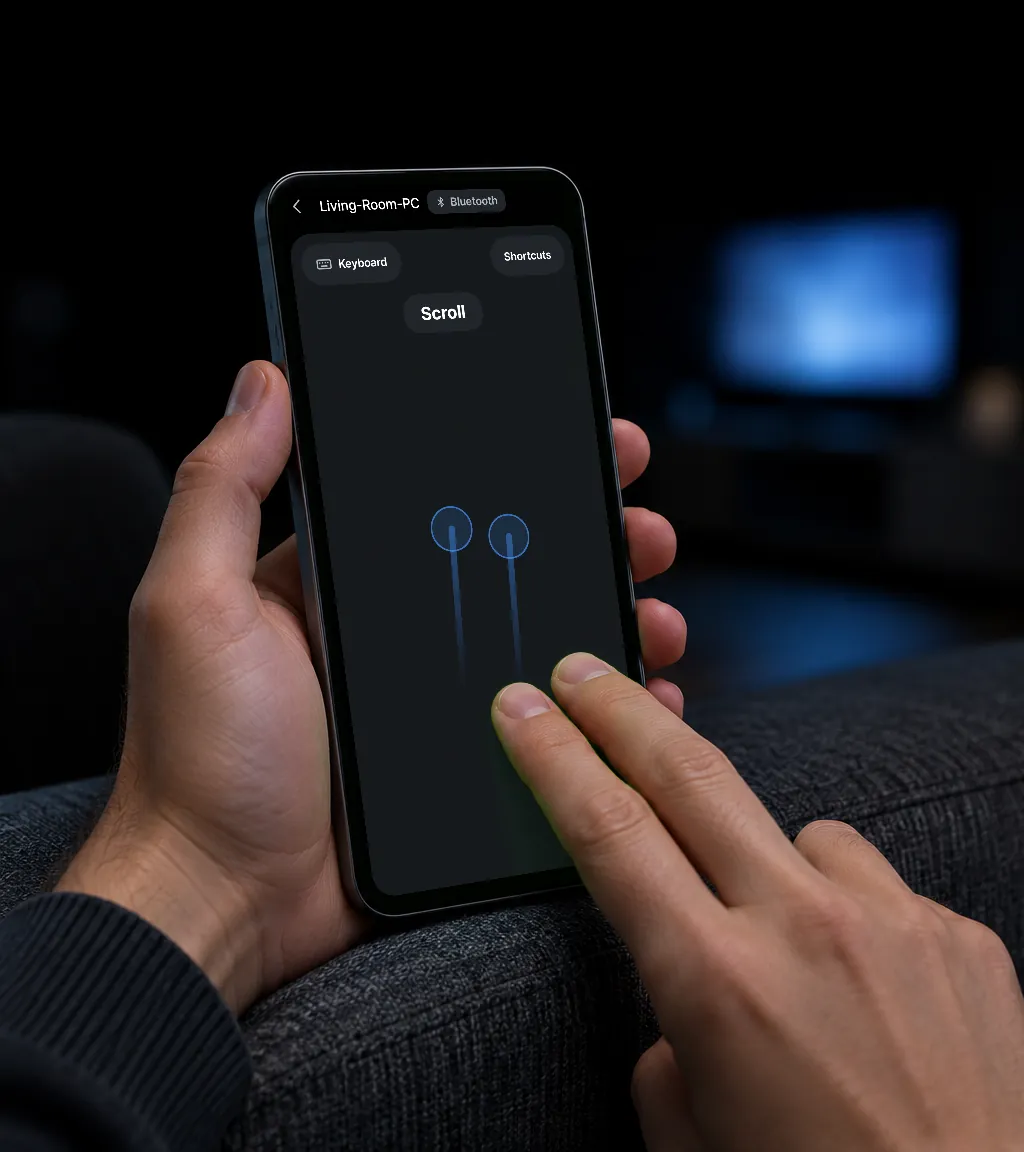
Drag one finger to move the pointer, tap to click. Tap two fingers to right-click, drag them to scroll, pinch to zoom.
Up for Task view, down for the desktop, sideways to switch apps, tap for search.
Sideways to switch desktops, tap for notifications.
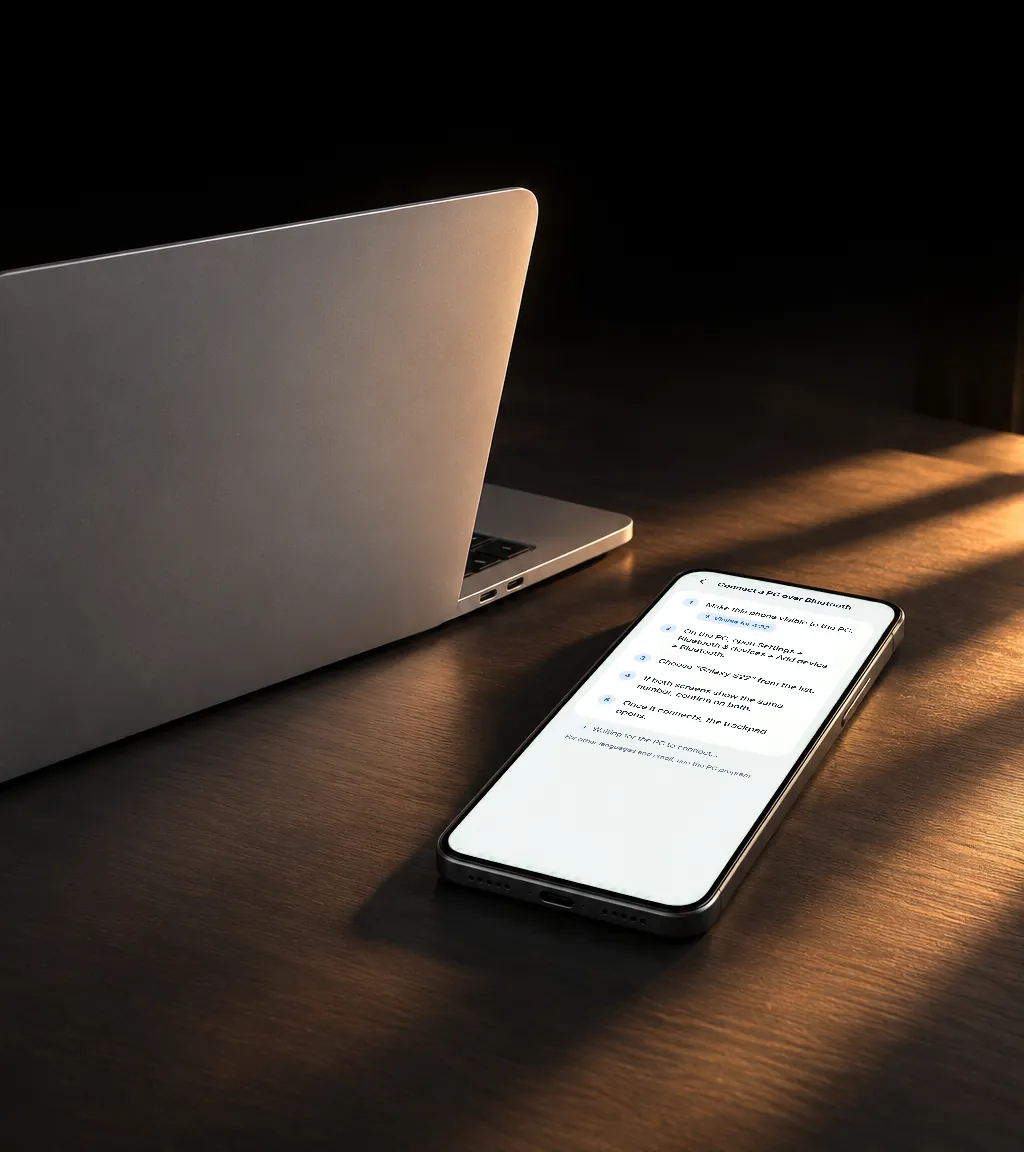
No install. Bluetooth.
Add it once on the PC
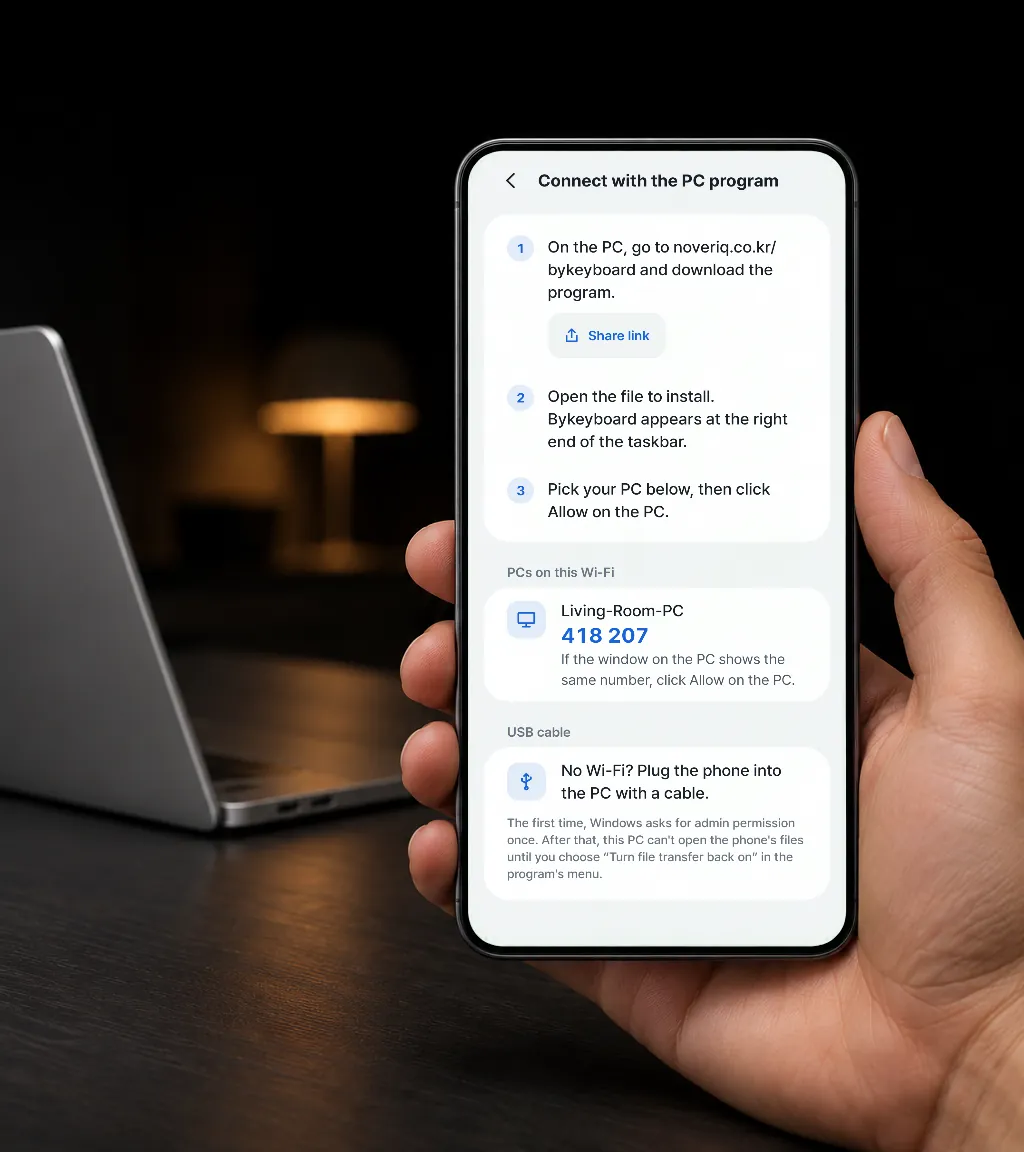
Same Wi-Fi
Pick the PC, then click Allow
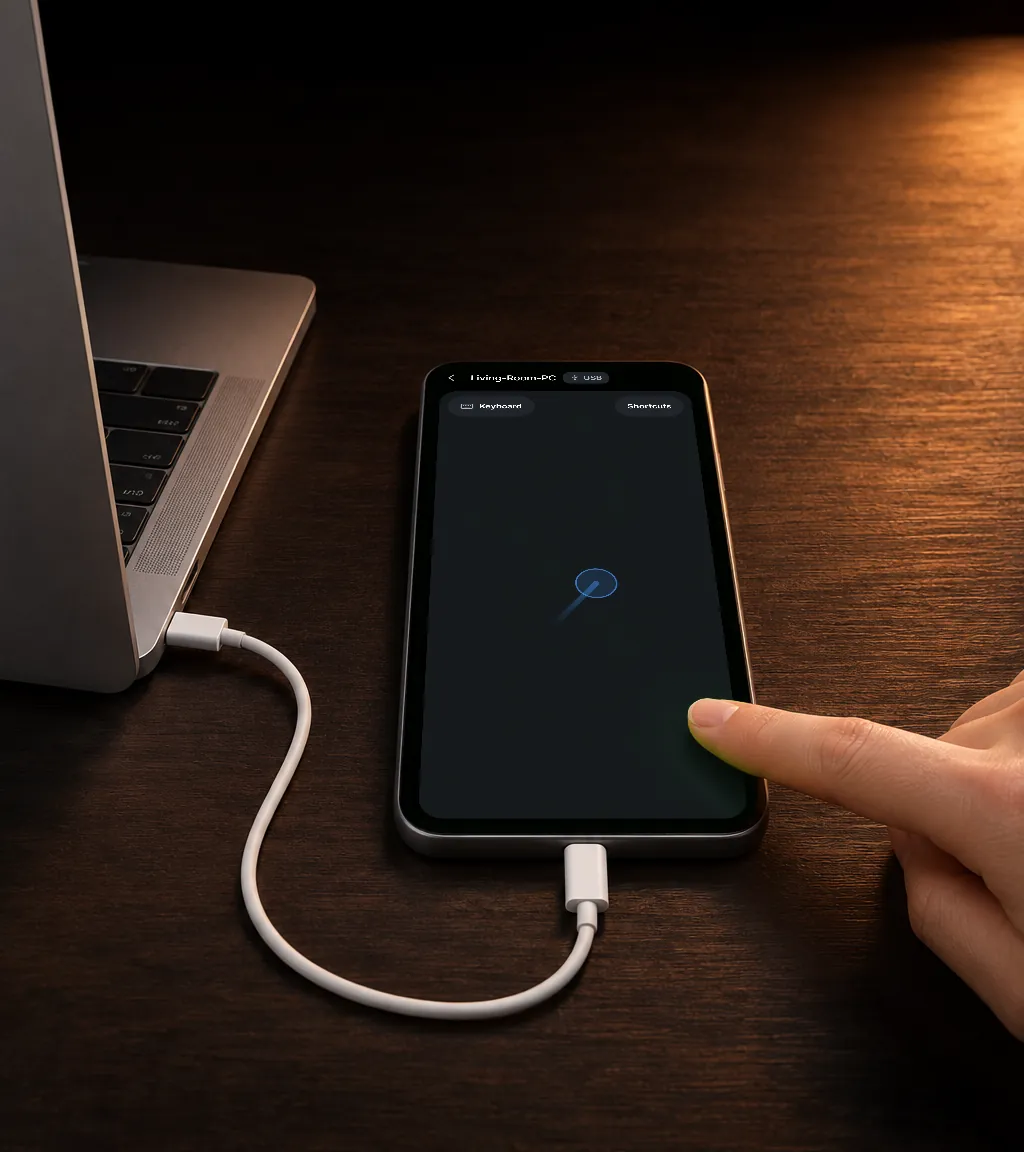
Or by cable
Where there’s no Wi-Fi
Nothing to install on the PC. Add the phone once as a Bluetooth device in Windows Settings; after that it reconnects when you open the app.
With the phone and the PC on the same Wi-Fi, the PC shows up in the app. The first time, check the number on the PC’s card and click Allow. No Wi-Fi? Plug in a cable instead.
What you type and your finger movements go only to the PC you connected. Nothing passes through a server or is stored anywhere.
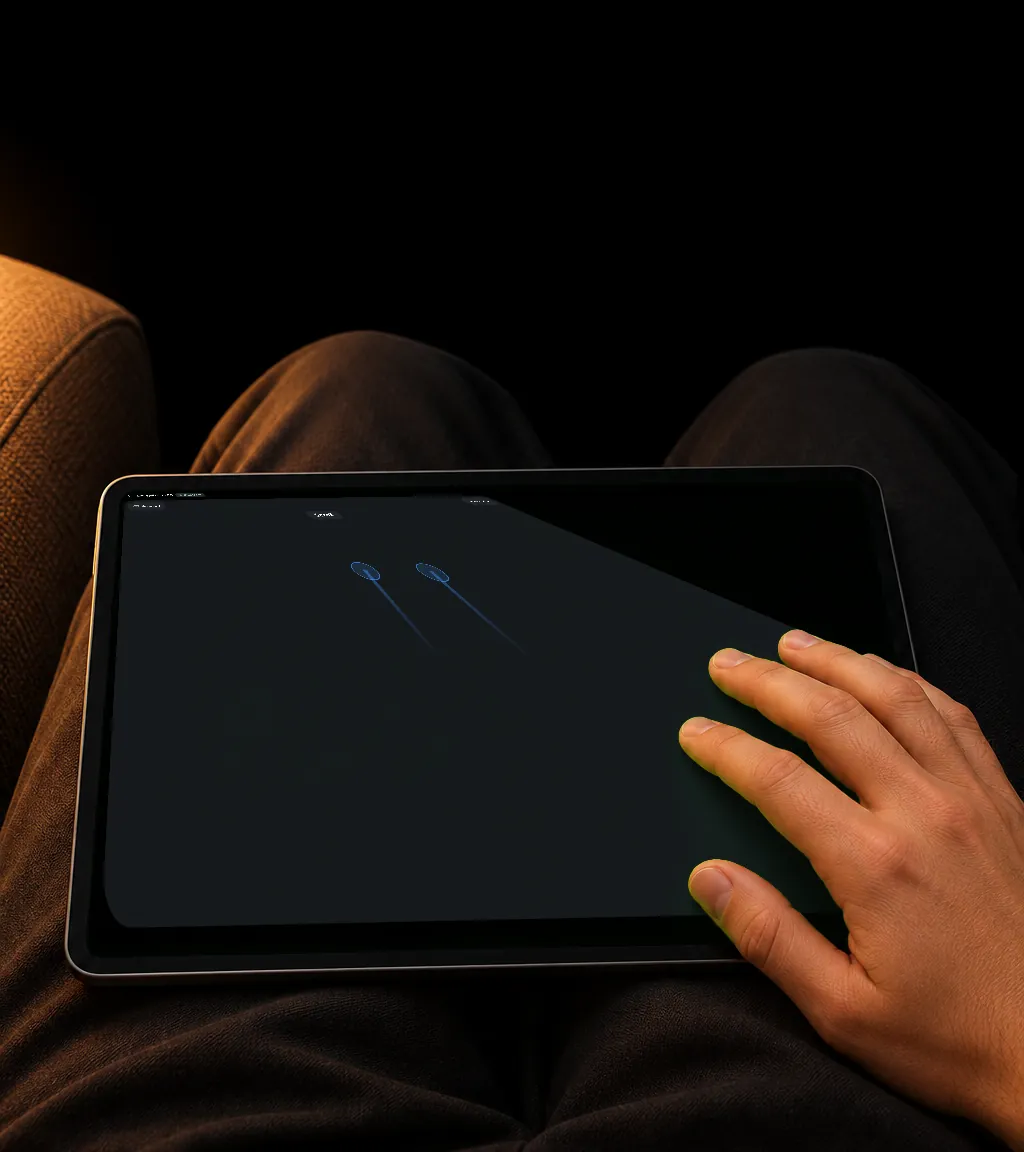
That old tablet too
As a big trackpad
Get started
You only do this once. If a support reply says “see step 2”, it means these numbers. Bluetooth or the PC program: one of the two is enough.
Connect over Bluetooth
- 1In the app: Bluetooth → “Make visible”The PC can find the phone for 5 minutes.
- 2On the PC: Settings → Bluetooth & devices → Add device → Bluetooth
- 3Pick the phone’s name in the list
- 4If both screens show the same number, confirm on bothOnce connected, the trackpad opens on the phone. To type Korean over Bluetooth, the PC needs a Korean keyboard.
Connect with the PC program
- 1Unzip and run bykeyboard.exeIt has no window; it sits in the notification area at the bottom right. Keep the unzipped folder.
- 2If “Windows protected your PC” appears: More info → Run anywayThe program isn’t code-signed yet, so this shows once.
- 3In the app: PC program → pick the PC on this Wi-FiThe phone and the PC must be on the same Wi-Fi. If Windows Firewall asks on the PC, choose Allow.
- 4If the card at the PC’s bottom right shows the phone’s number, click AllowNo mouse? Ctrl+Alt+Y brings the card up and Alt+A allows. After that, it connects without a number.
- 5For the cable: plug the phone into the PCThe PC program must be running. USB debugging can stay off. The first time, a card on the PC says the USB driver needs installing once: click Install, then Yes in the administrator prompt. If the phone asks whether to open Bykeyboard, tap OK. After that, just plug it in.
Help
Korean typed over Bluetooth comes out in English
The PC needs a Korean keyboard (Settings → Time & language → Language & region). If it has one, the PC and the phone disagree on Korean/English: tap “Fix 한/영” on the key bar to delete what you just typed, switch, and type it again. With the PC program, the input language doesn’t matter.
My PC isn’t in the app
Check that the PC program is running in the notification area and that the phone and the PC are on the same Wi-Fi. If Windows Firewall blocked Bykeyboard, allow it. Office and café Wi-Fi often keep devices from reaching each other; use Bluetooth there.
The phone isn’t in the PC’s Bluetooth list
After tapping “Make visible” in the app, search on the PC within 5 minutes; if the time has run out, tap it again. The phone’s Bluetooth must be on.
The cable is plugged in but nothing connects
Check that the PC program is running in the notification area. A charge-only cable won’t work; use one that carries data, like the one that came with the phone. If the 3-day trial is over and you haven’t bought, the phone shows the purchase screen.
Since using the cable, the PC can’t see the phone’s photos
On a PC set up for the cable, file transfer for that phone is off. Choose “Remove Bykeyboard from this PC” in the tray menu to turn it back on. That also clears the allowed phones and “Start with Windows”.
Text doesn’t go into some windows
The PC program can’t type into a window running as administrator (such as an administrator command prompt). Windows blocks it; over Bluetooth it works.
I want to report a problem
Type %LOCALAPPDATA%\Bykeyboard in File Explorer’s address bar and email us the host.log file there. It records what happened, never what you typed.