 Bycare
한국어
Get the app
Your parent’s phone, on your phone
See the same screen and show them where to tap
Install on both phones, your parent’s and yours · Android 10 or later · No sign-up · The app is in Korean
They decide
when you see it
Nothing shows until they tap Show,
every time you ask
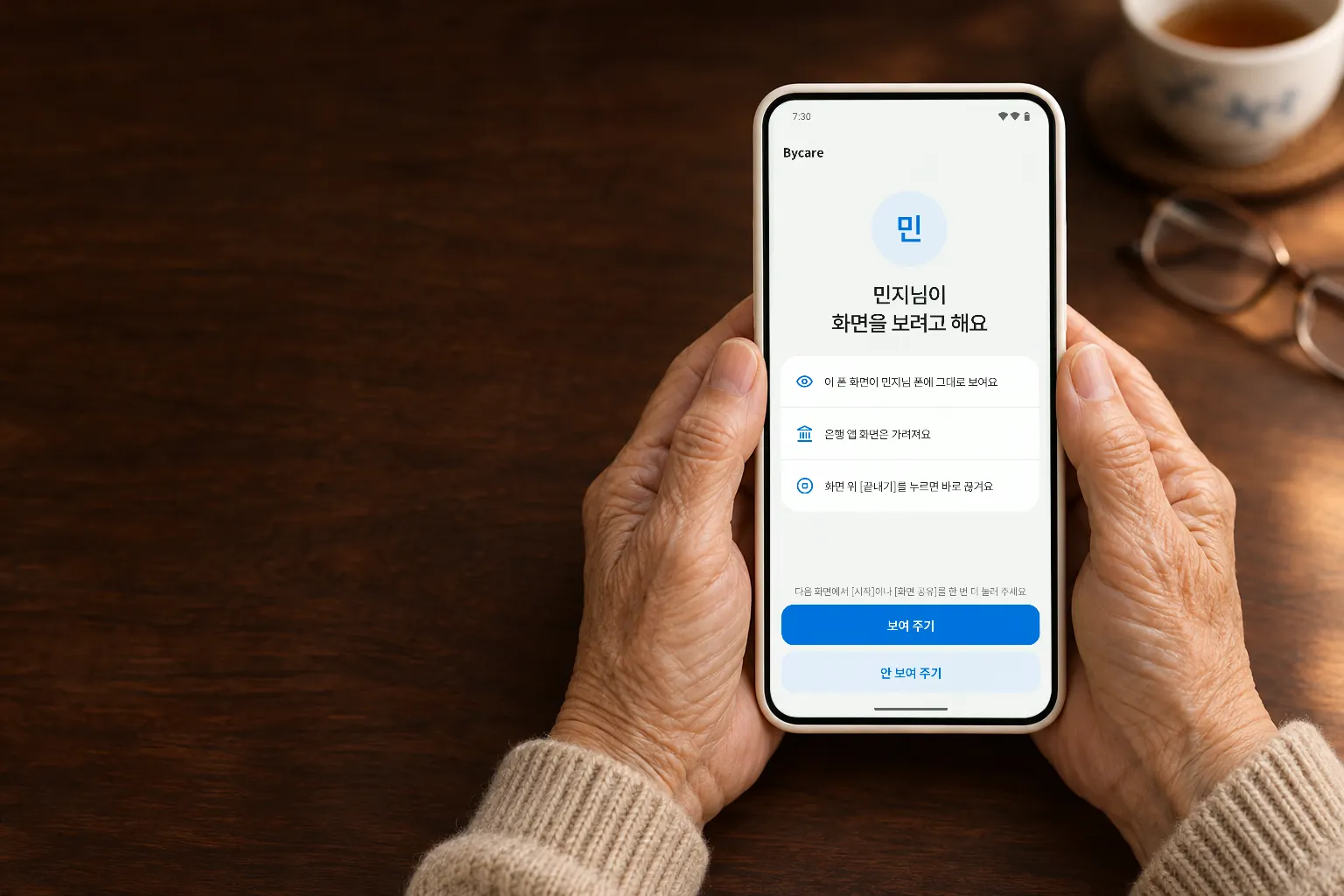
When you ask to see the screen, a notification appears on your parent’s phone. Nothing shows until they tap Show and then allow Android’s screen-sharing prompt.
If they tap Don’t show, your phone says so. Call them and ask again.
Pairing and turning on tapping for them only work after the call ends. Banks, the police and card companies never ask anyone to install an app like this over the phone.
Tap
for them.
Tap on your phone
and theirs does it
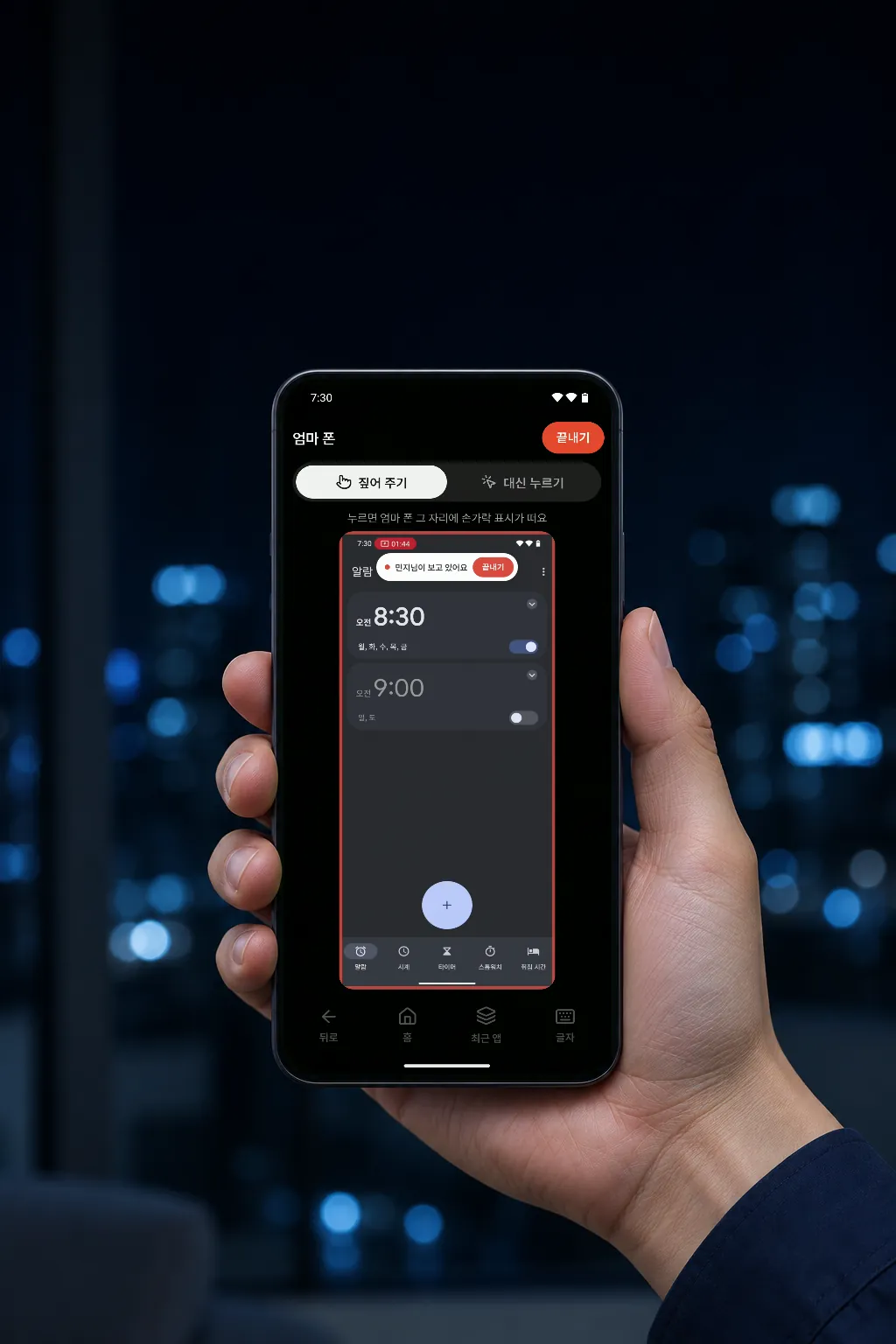
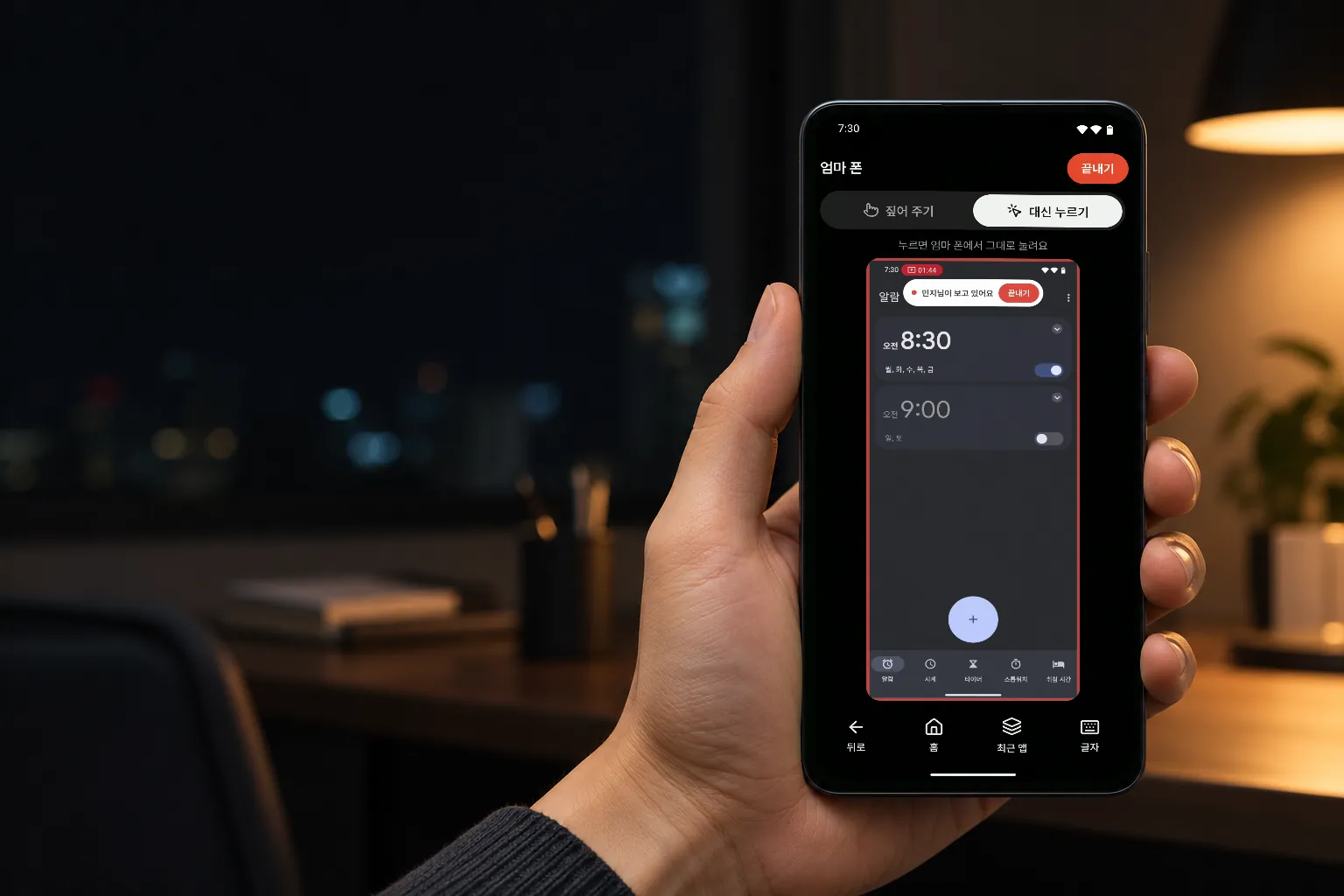
Tap on your phone and a finger mark appears at that spot on theirs, for when they should tap it themselves.
Taps and swipes happen on your parent’s phone. Tapping for them has to be on, on their phone; when it is off, you can only point.
Send Back, Home and Recents, and type on your phone to fill a text box on theirs.
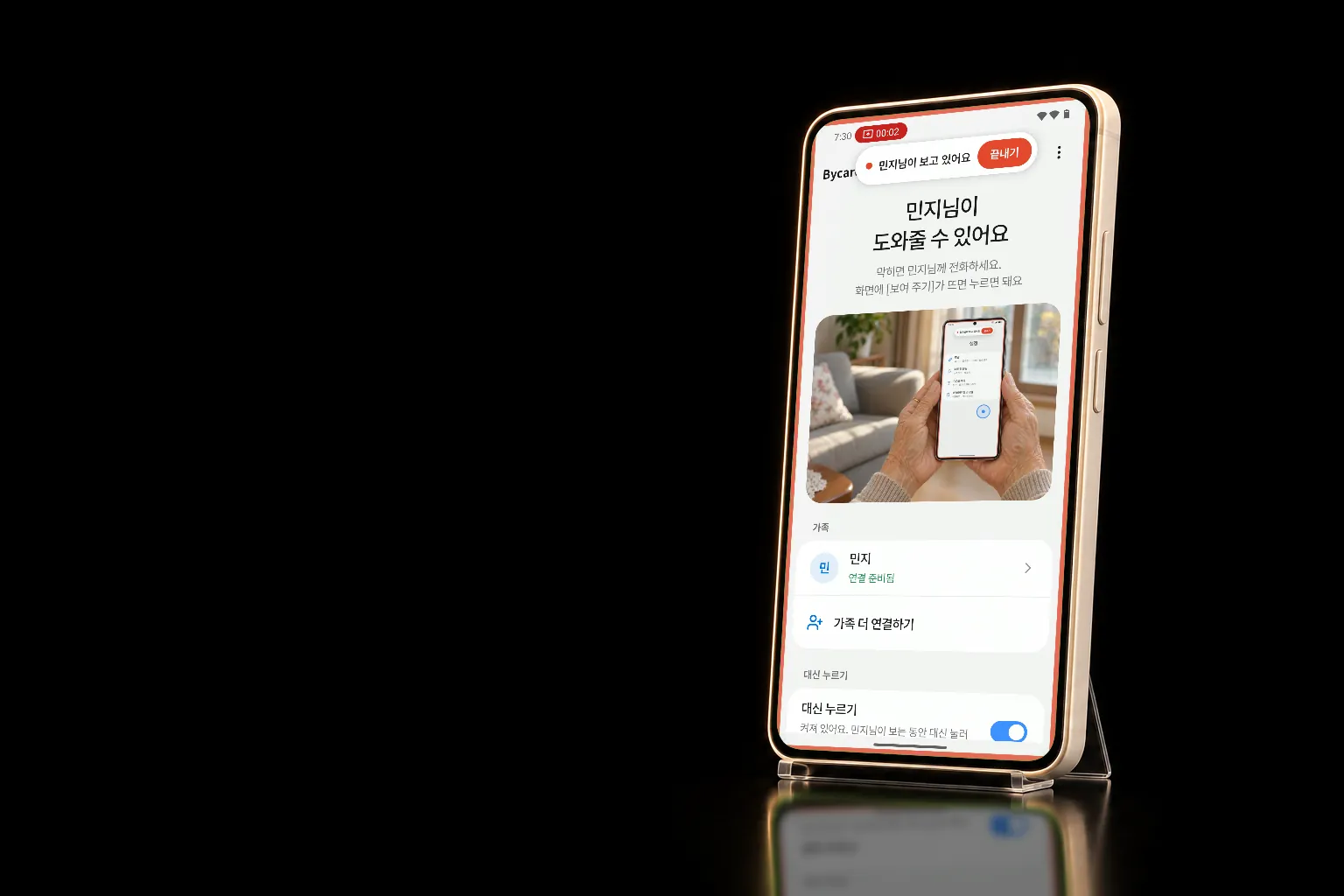
A red frame
while you look.
One tap on End
stops it
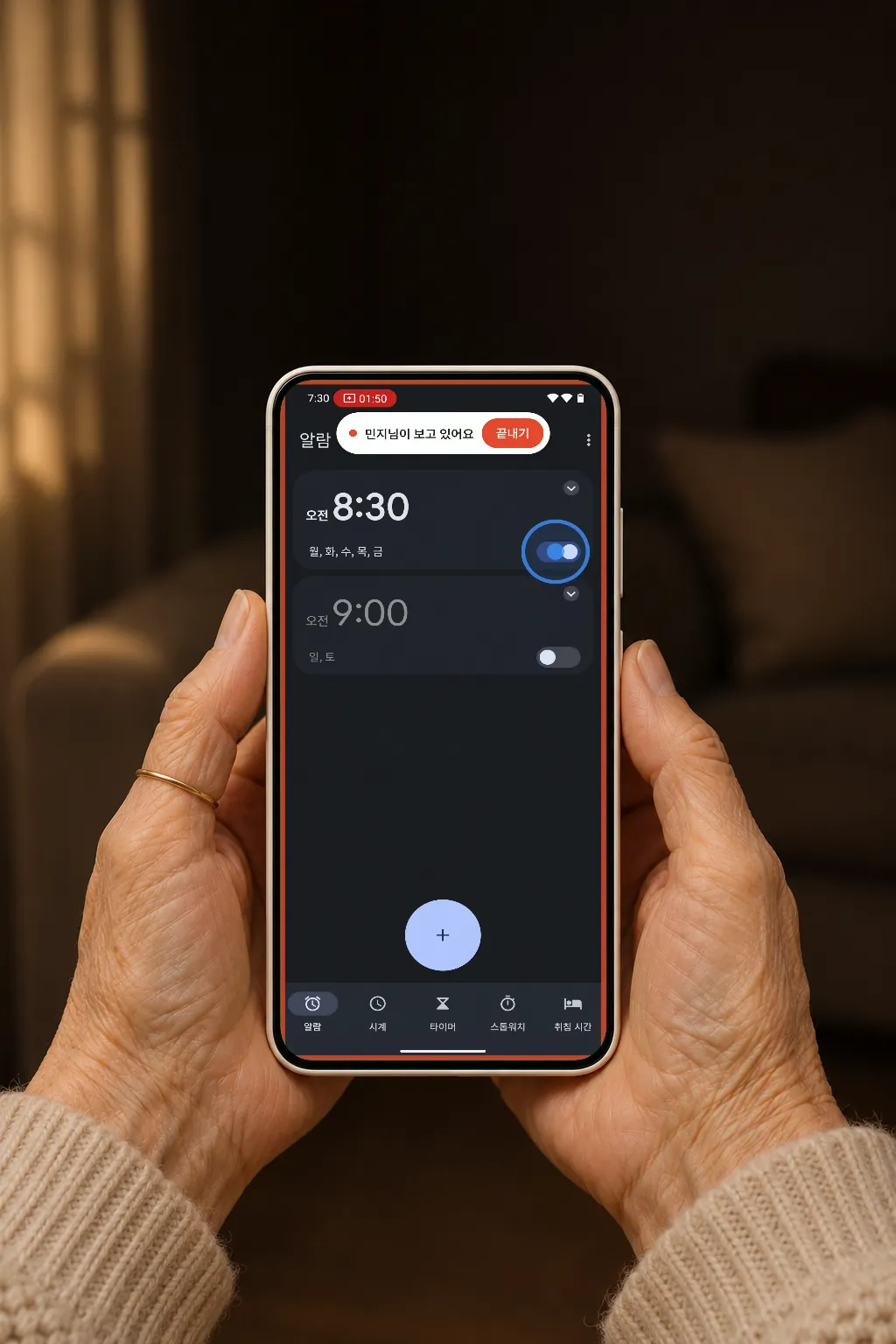
A red frame runs round the screen, and a bar at the top says who is looking, with an End button. One person looks at a time.
With tapping for them on, a banking, card, pay or stock app that comes to the front is covered on your phone and tapping for them stops. With it off, Bycare can’t tell which app is open, so the approval screen asks your parent not to open banking apps while sharing.
Who looked, when and for how long stays in Bycare on your parent’s phone, the last 100 times.
Get started
Pair once, while you are together. When a reply to your question says “see parent’s phone 3”, it means this number.
Your parent’s phone
- 1Install Bycare and choose the parent’s phone
- 2Allow notifications and display over other appsFor the notification when you ask to look, and for the red frame and the End bar while you do.
- 3Tap the button to connect a family phone: a QR code appearsIt works for 10 minutes; after that, make a new one.
- 4To let you tap for them, turn on tapping for them on the home screenRead what it does, agree to open the settings, then Accessibility → Bycare → on. Without it, viewing and pointing still work.
Your phone
- 1Install Bycare and choose the child’s phone
- 2Type your name as your parent will see itIt appears in their notification and on the bar.
- 3Tap the button to connect a parent’s phone and scan the QR codeTheir phone then shows as connected in your list.
- 4When they need help, tap the button to see their screenYour screen says what to tell them. As soon as they tap Show, you see it.
Help
They tapped Show but I can’t see the screen
After Show, Android asks once more: they need to tap Start or Share screen there. If that prompt was closed, ask again from your phone.
No notification on their phone
If their phone is off or has no internet, the request can’t reach it. Also check that Bycare’s notifications are on in their phone’s settings (parent’s phone 2).
Tapping for them doesn’t work
When tapping for them is off on their phone, your phone offers pointing only (parent’s phone 4). After the first 3 days it takes the one purchase on your phone. It also stops while a banking or payment app is in front.
It stops after 30 minutes
Without the purchase you can look for 30 minutes at a time. Ask again to carry on.
How do we unpair?
On either phone, tap the family member’s name and choose to disconnect. To pair again, scan a new QR code while you are together.
Is the screen stored anywhere?
No. The screen, the taps and the text are end-to-end encrypted between the two phones on their way through our relay, which can’t read them. Details in the privacy policy.