 Bycam
한국어
Download for PC
Your phone as your PC's webcam
Laptop camera dark and blurry? Plug in your phone with a USB cable and use it instead
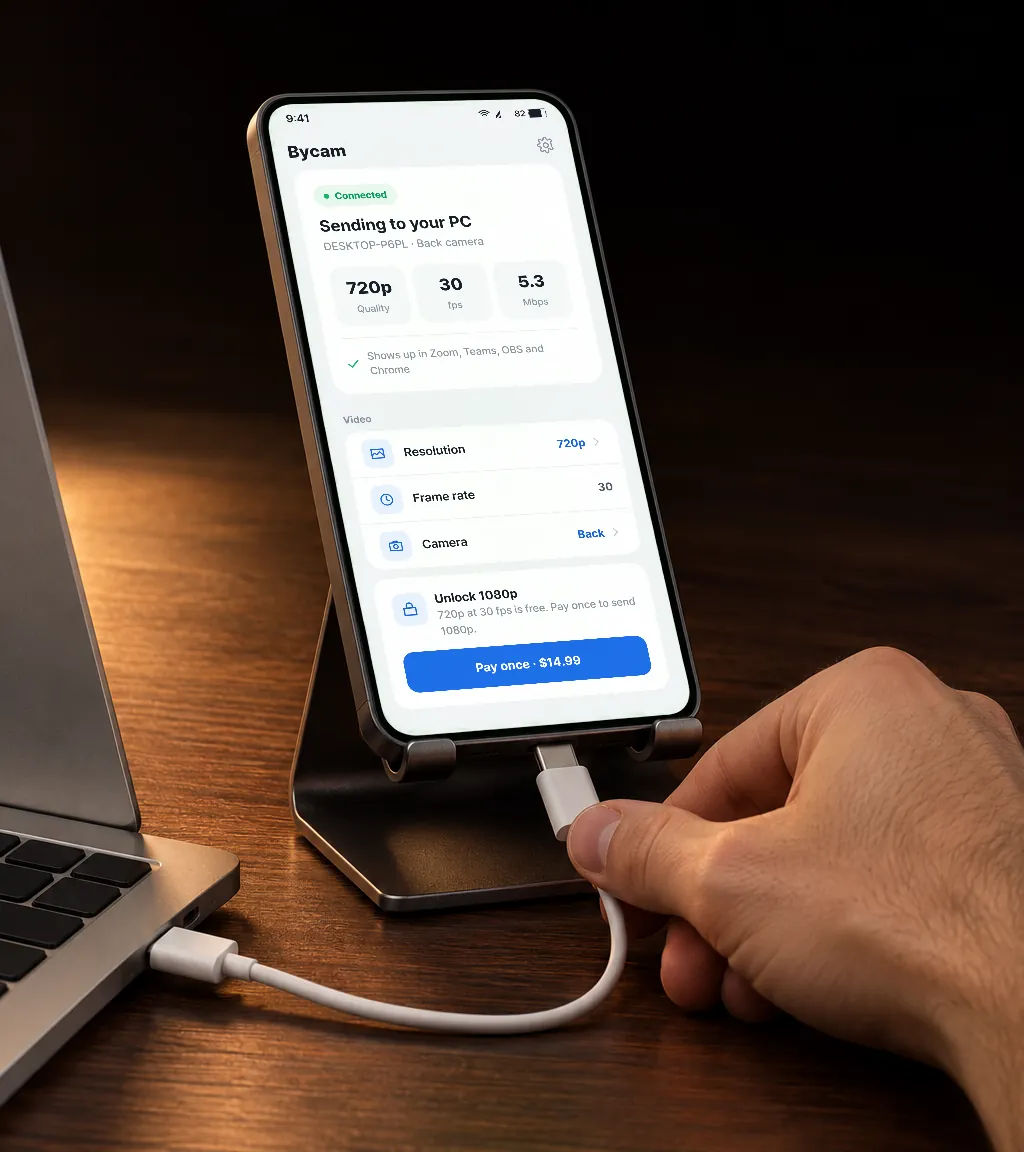
PC: Windows 11 (22H2 or later), 64-bit · 46 MB zip · Phone: Android 8 or later
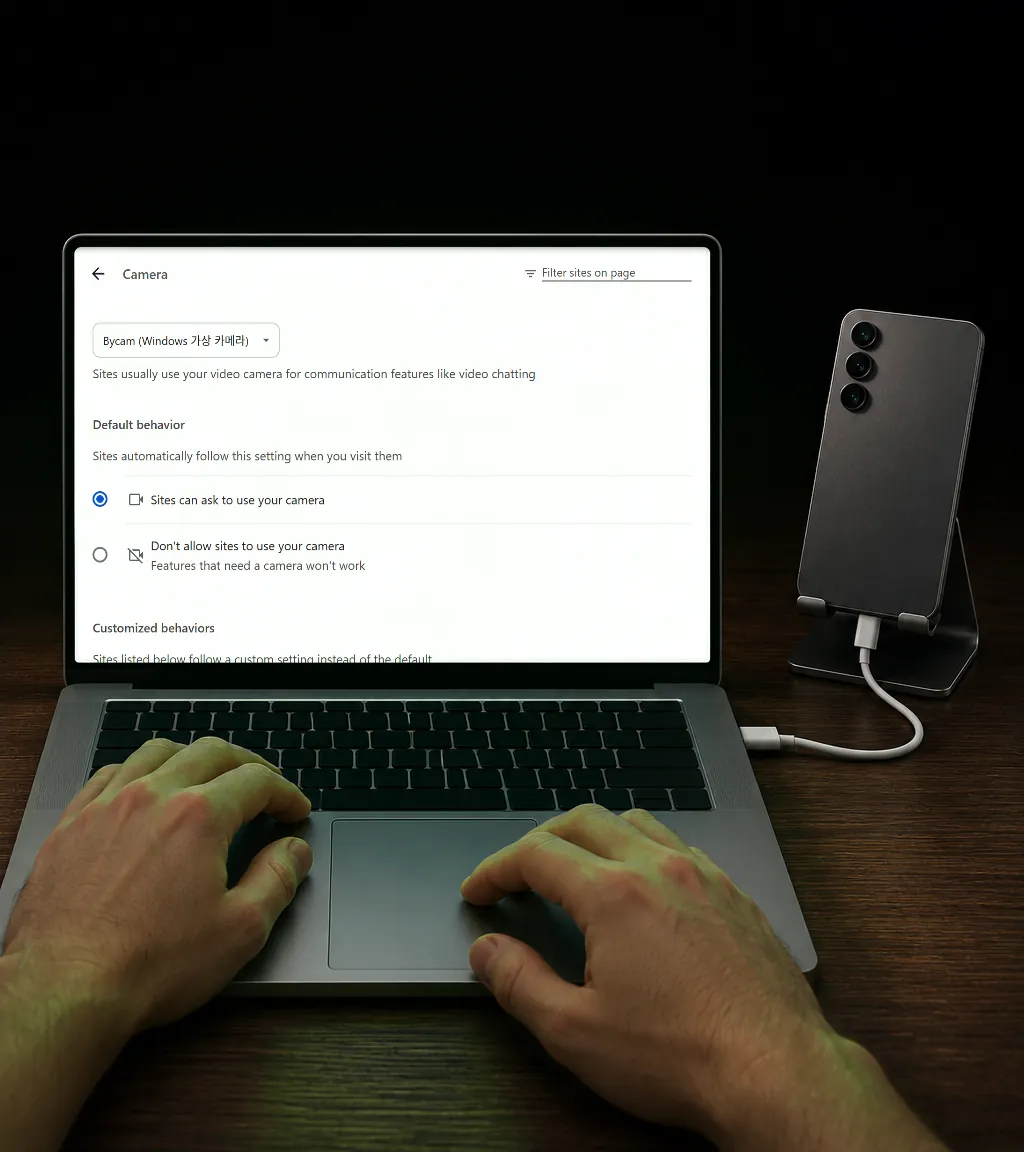
Right before the call
Plug in and pick “Bycam”
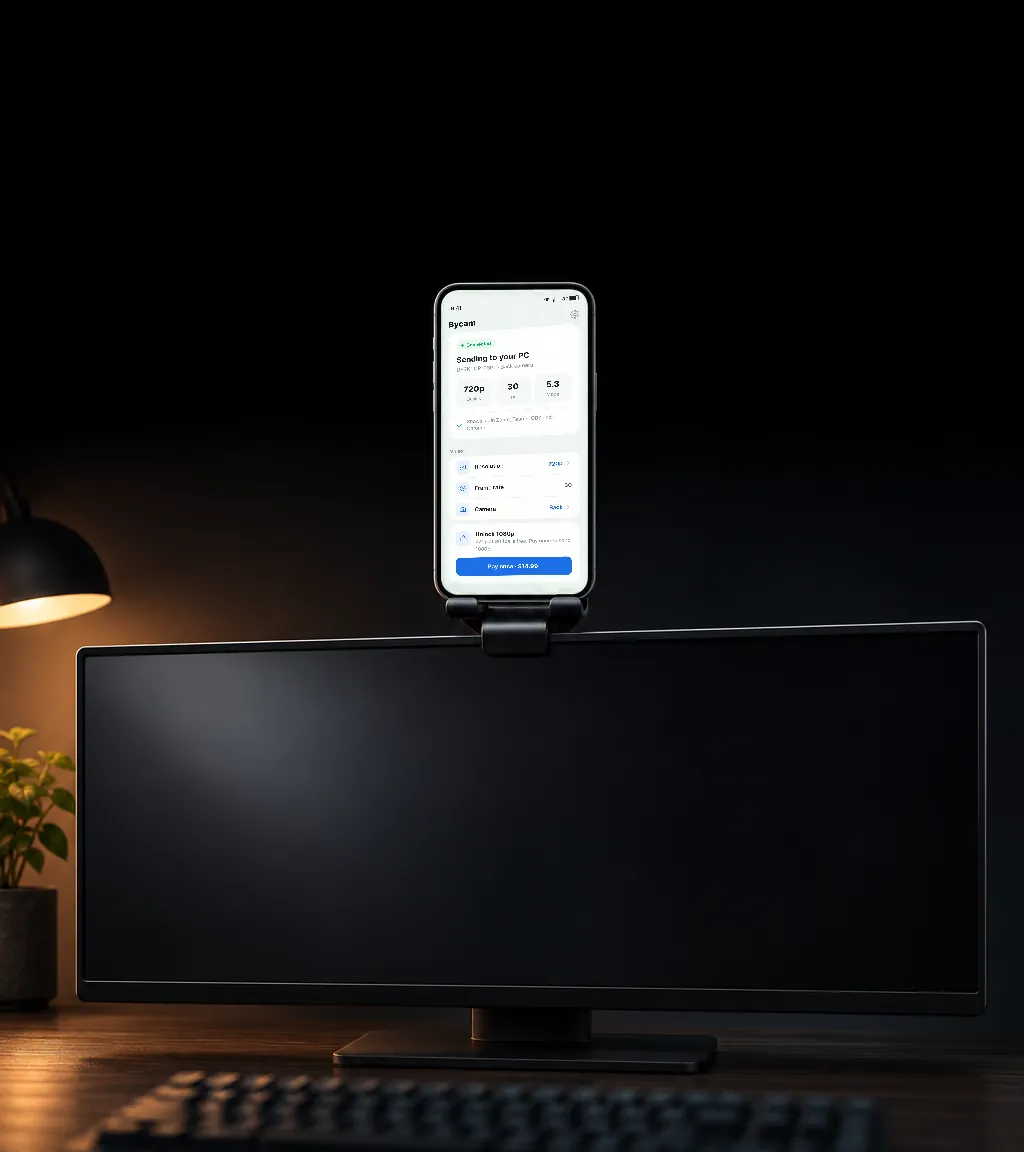
Even a PC with no camera
Just a phone on top of the monitor
“Bycam” appears in your PC's camera list. Pick it in the camera settings of your meeting or class app.
Your phone's camera shows your face instead of the small one above the laptop screen.
Stand the phone on or beside the monitor and it's the webcam. No need to buy one.
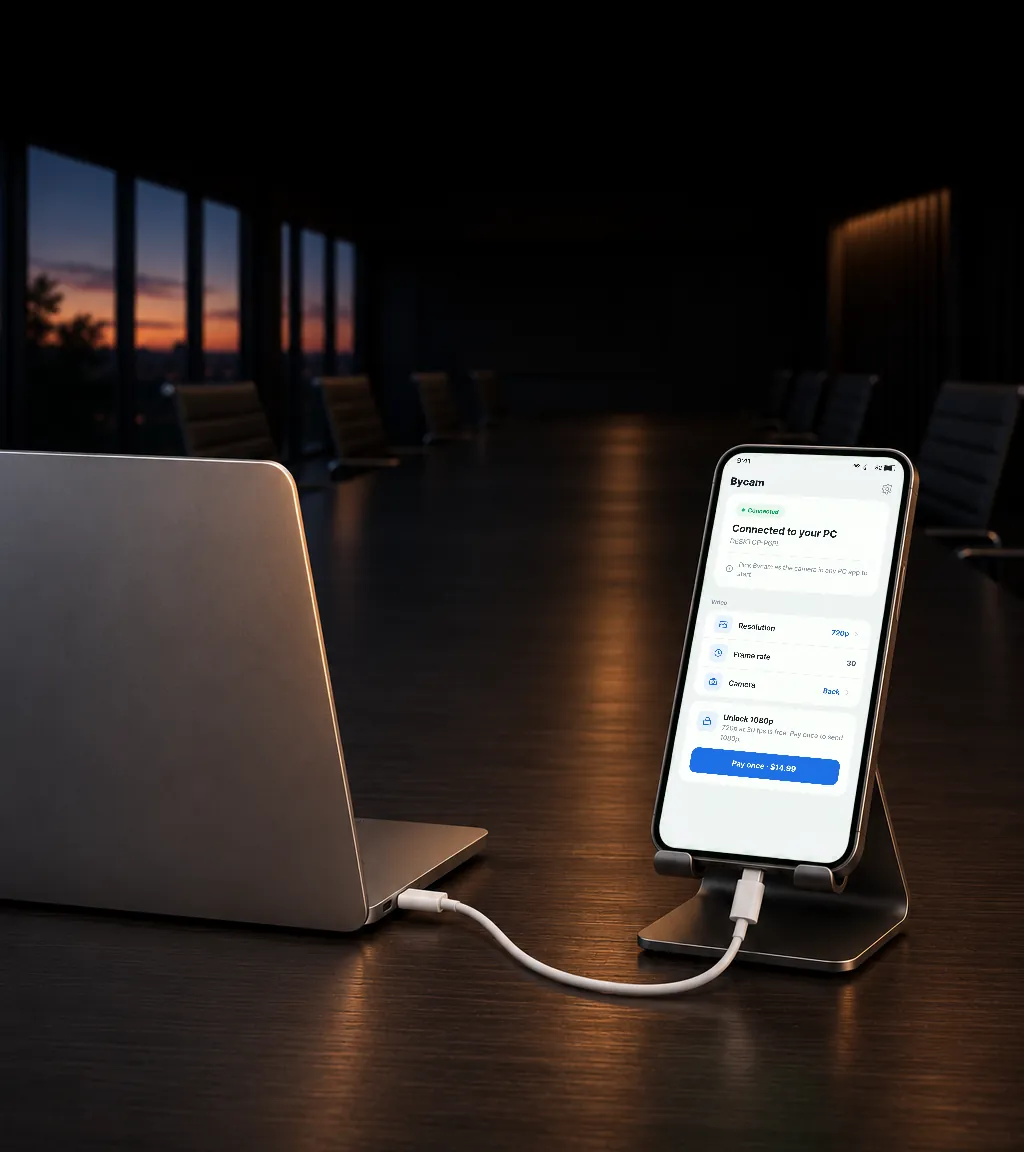
Wi-Fi or not
Video goes straight down the cable
Any cable that carries data. Even where the office or cafe Wi-Fi is crowded, the video takes the cable.
The PC and phone don't have to be on the same router, and Wi-Fi can be off.
The video goes down the cable to the PC it's plugged into. No server in between, and it isn't saved anywhere.
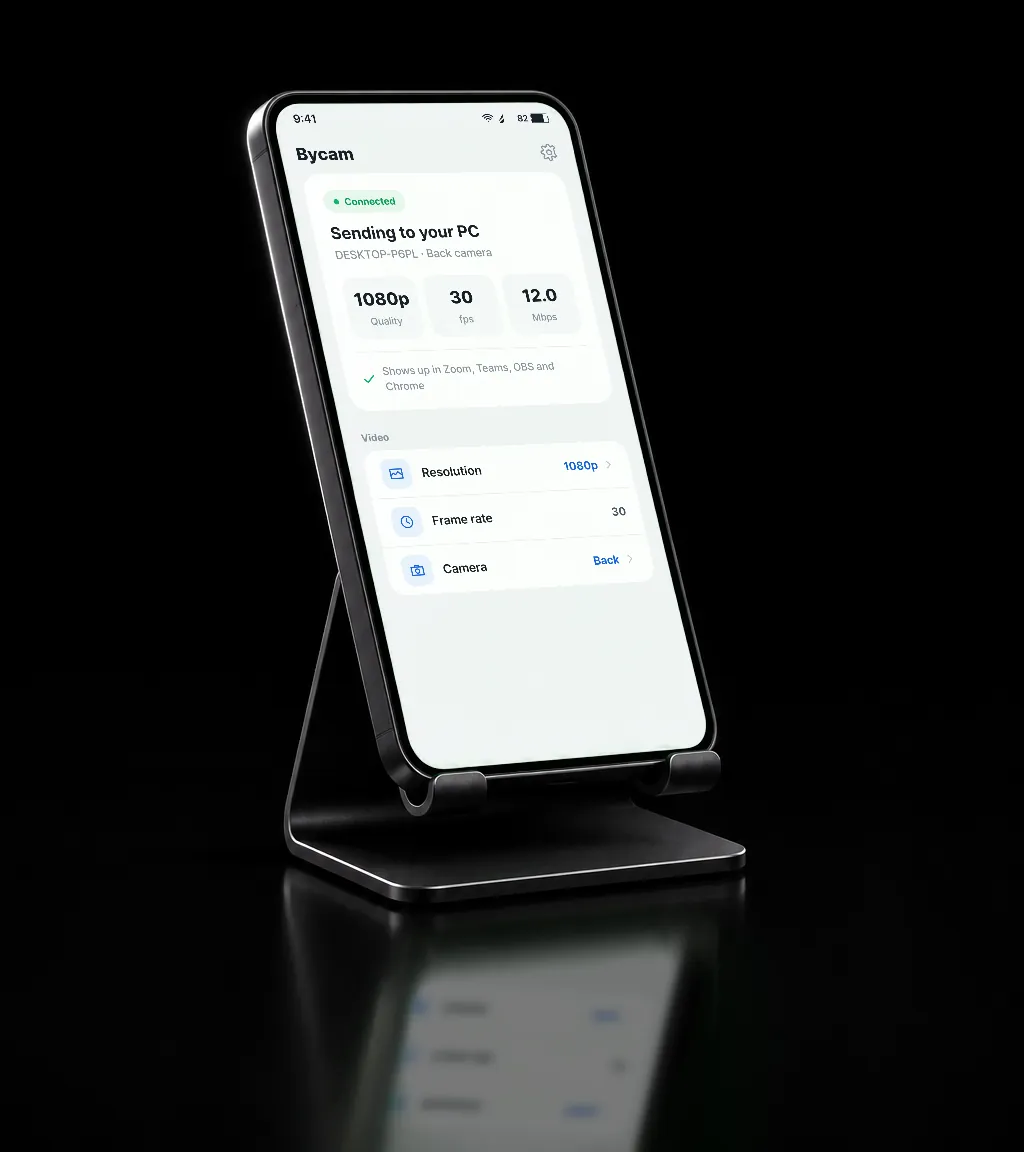
1080p
Switch front and back cameras on your phone
Get started
You only do this once. When we answer an email with "see step 3", it's these numbers.
Get the PC program
- 1Unzip and run bycam.exeThe program runs from the unzipped folder, so keep it.
- 2If "Windows protected your PC" appears: More info → Run anywayThe program isn't code-signed yet, so Windows asks the first time.
- 3Choose Yes in the administrator promptThis adds the “Bycam” camera to the PC, once per PC. After that the program has no window: it lives in the tray at the bottom right and starts with Windows.
Plug in and pick “Bycam”
- 1Plug the phone into the PC with a USB cableA charge-only cable won't connect.
- 2If the PC says "The USB driver needs to be set up once": Install → YesOnce per phone. After that, file transfer with this phone stops working on this PC. A phone with USB debugging on shows "A phone is connected over USB" instead: choose Connect.
- 3When the phone asks whether to open Bycam, tick Always and confirmWithout Always, it asks every time you plug in.
- 4Pick “Bycam” in the camera settings of your meeting or class appThe phone camera turns on when the app opens the camera and off when it closes it.
Help
Nothing happens when I plug in the cable
Charge-only cables don't connect; try a cable that carries data. Check that the PC program is running in the tray, and that the phone's USB setting (in its notifications) is File transfer.
“Bycam” isn't in the camera list
The PC program has to be running for it to appear. Look for the Bycam icon in the tray at the bottom right. The camera is registered when you choose Yes in the administrator prompt on the first run. It needs Windows 11 (22H2 or later).
I can't copy photos from my phone to this PC
A phone set up with Bycam's USB driver can't transfer files on that PC. Tray icon → Remove Bycam from this PC puts it back the way it was.
My work PC asks for an administrator password
Registering the camera and setting up the USB driver need administrator rights. Ask your IT team. After that it only asks when you plug in a new phone for the first time.
I want to report a problem
Type %LOCALAPPDATA%\Bycam in File Explorer's address bar and email us the host.log file there. It records what happened.